
Elsa Training Guide for Reviewers
Last updated on November 04, 2025
Welcome to Elsa! This guide is meant for reviewers completing a review of content in Elsa. Simply click the drop-downs for more information.
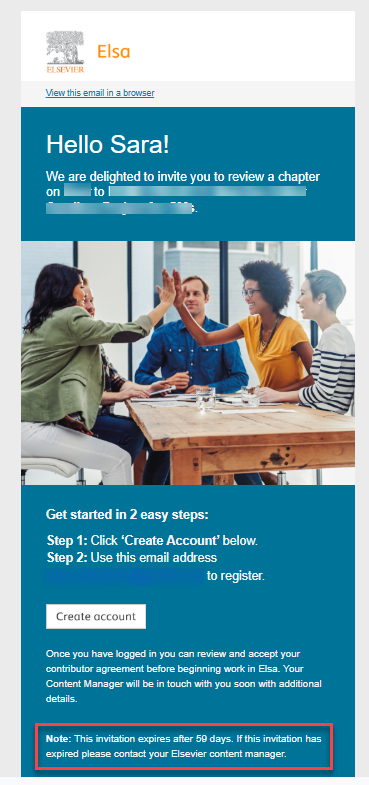
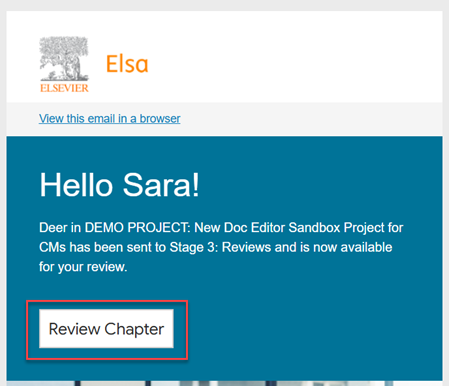
- As Elsa Reviewer, you will receive an email containing your invitation to the chapter you’ve been assigned to.
Click on "Create account" to start. Note that the invitation will expire in 59 days, so make sure to act upon it in a timely manner.
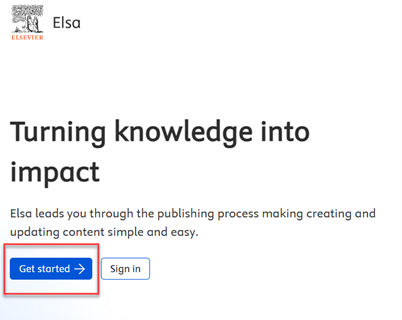
Using Chrome, Firefox or Edge, select "Get started" to create your account in Elsa.
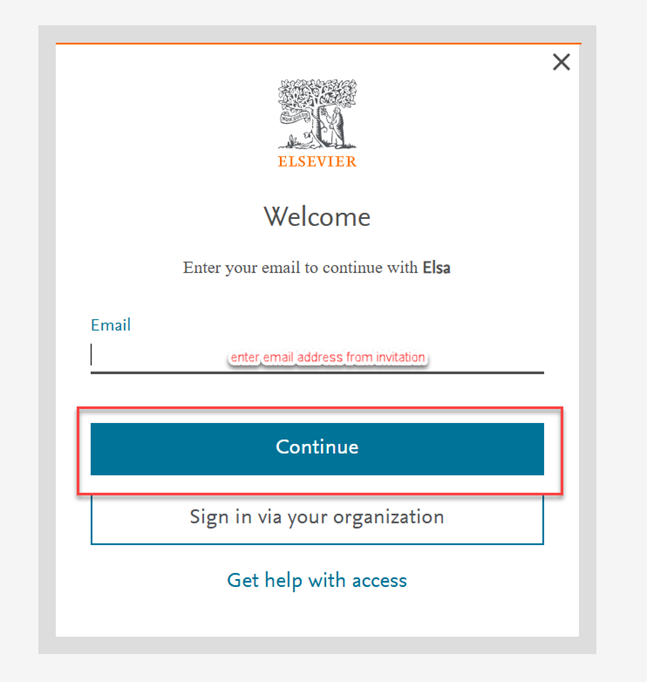
Please use the same email address where you received your invitation, and then click on 'Continue'.
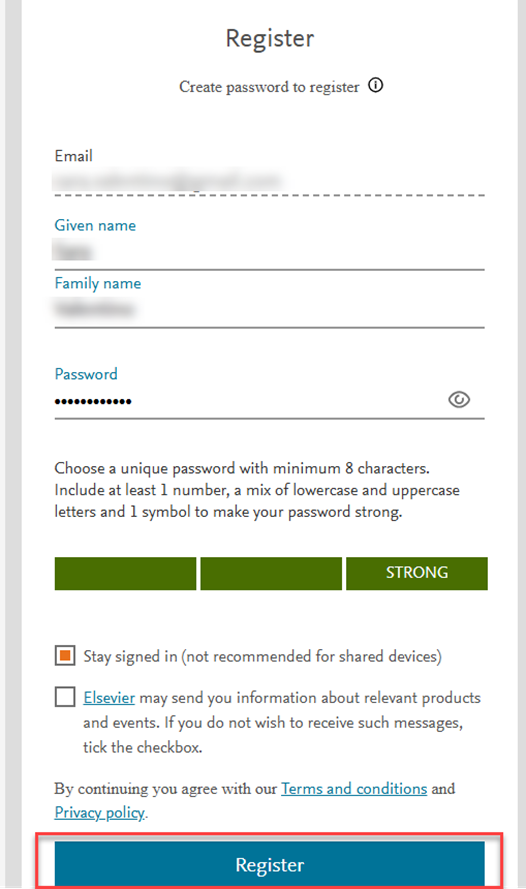
Enter your Name, Surname and a strong password to register to the platform. If you already have an account, you also have an option to sign into it.
- If you need assistance with login and access, see: How do I log In and how can I troubleshoot log in issues?opens in new tab/window
If you already have an account with another Elsevier product that uses single-sign on, then you will be asked to enter your password. Enter the password you use with other Elsevier products such as ScienceDirect, Scopus, etc. (note that EMSS does not use single-sign on)
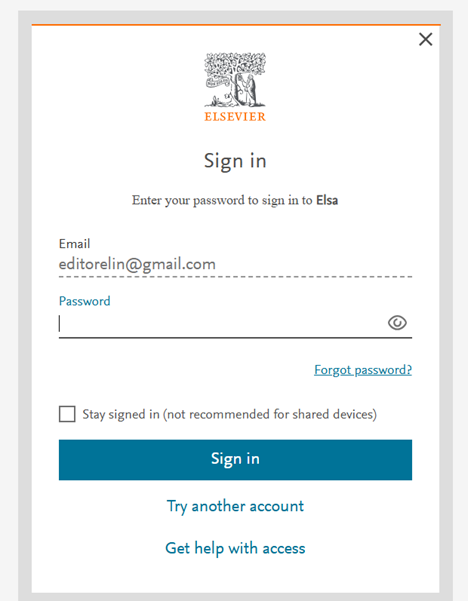
- Click "Forgot password?" to reset your password or sign in with a one-time code. You may need to clear your browser's cache and cookiesopens in new tab/window to remove the old password data.
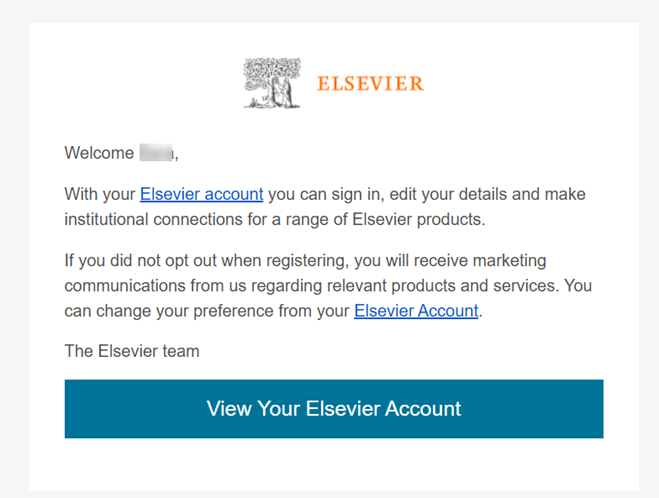
After completing the registration process, you will receive a confirmation email granting you access to your Elsevier Account. This email will also provide you with the option to view and update your account information. (find out more about your Elsevier Accountopens in new tab/window)
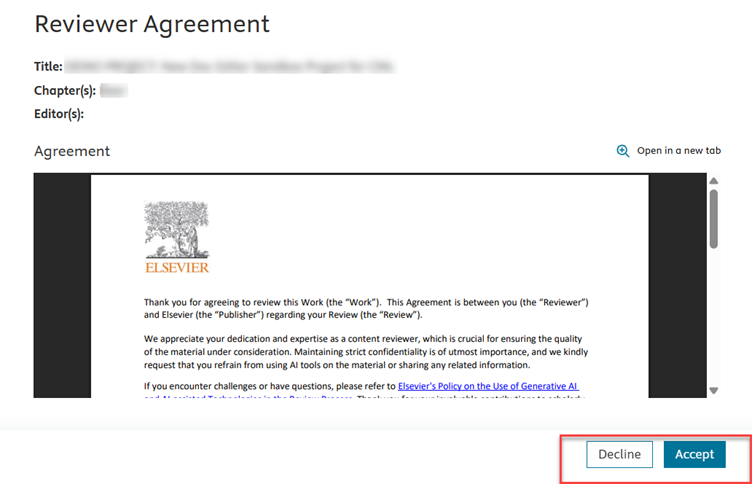
In Elsa, you can view your Reviewer Agreement and choose to either Accept or Decline it.
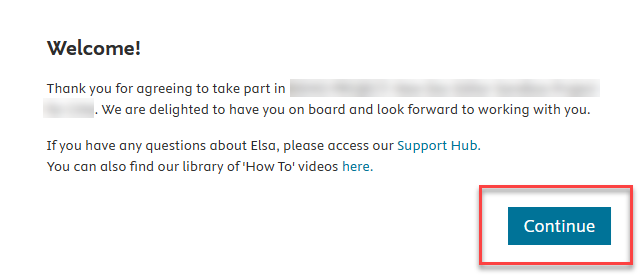
If you choose to Accept, you will see a Welcome message with links to explore the Support Hubopens in new tab/window for additional resources. You can also watch videos to learn more about using Elsa. Click on "Continue" to access the book and chapter(s) you will be reviewing.
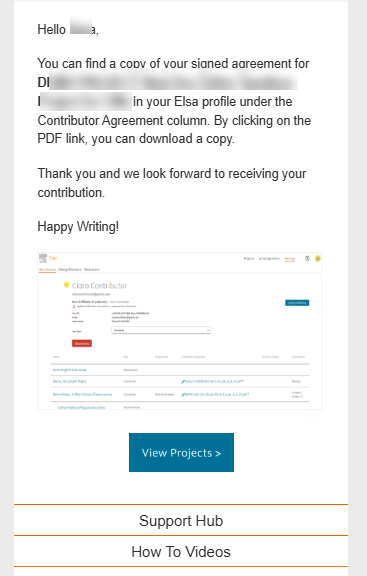
You will also receive a copy of the agreement via email:
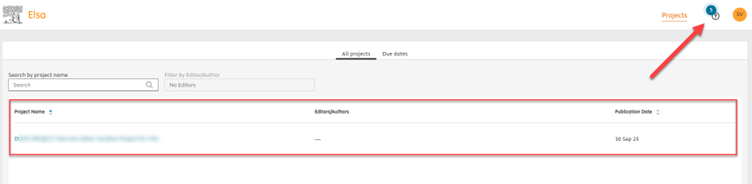
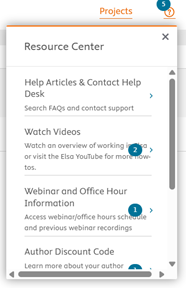
Your dashboard displays the book(s) you are invited to help with. You can access the Support Hubopens in new tab/window from the ‘?’ on the top right side of the screen.
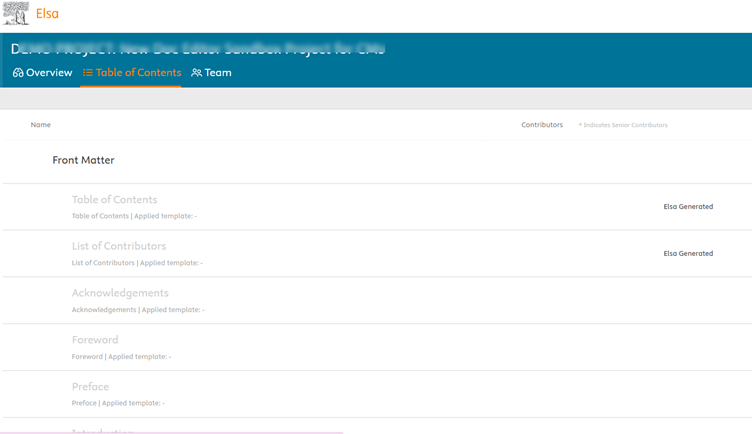
For context, please refer to the Table of Contents tab to see the titles of other chapters. Keep in mind that this is read-only, and you will only have access to the chapters you’ve been invited to review.
To access the chapter(s), click on the hyperlinked book title.
The chapters you are invited to review will be listed on the next screen. Please note that the authors may still be making edits to these chapters.
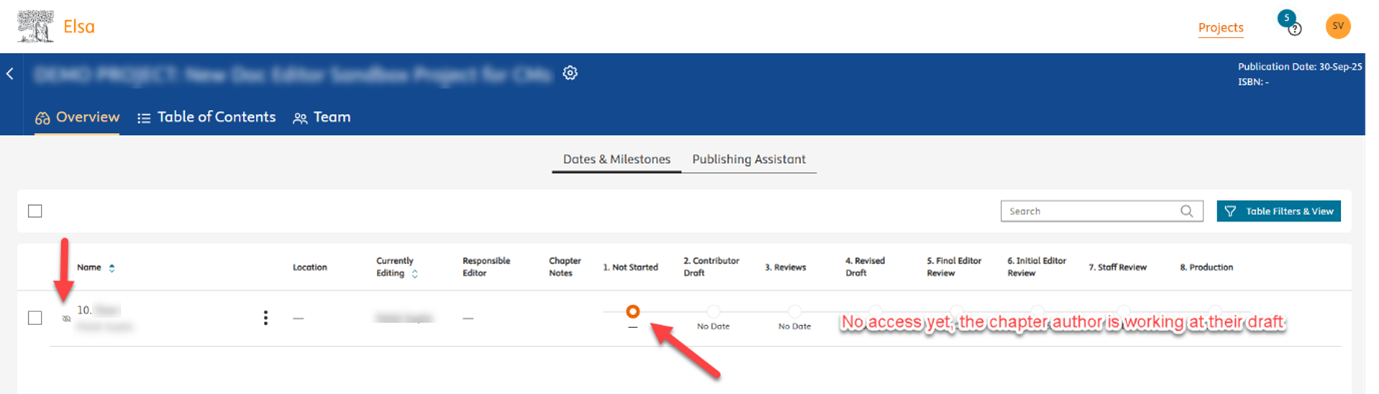
You can check the current stage of the chapter, and you'll receive a notification when it moves to the Review stage.
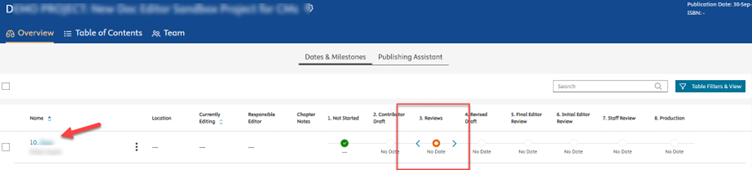
Click on the hyperlinked title to access the chapter.
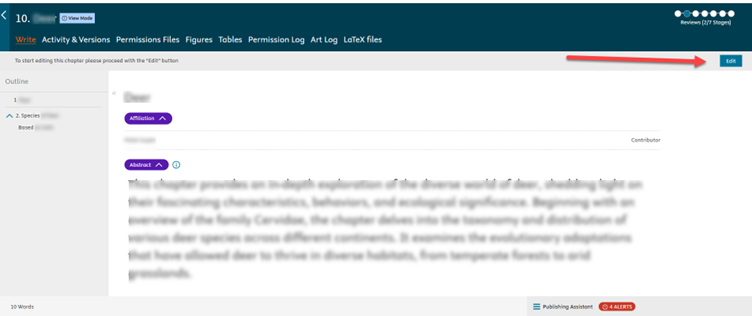
You will get access to the Write Space, click on Edit to start your review:
Highlight a portion of text to add your comments. The Editor(s) will also be able to see your comments and take them into consideration during their chapter review.
As a reviewer, track changes will be turned on for you by default and cannot be switched on or off. Because of this, you will not be able create a print preview of the chapter to work offline and we recommend making your edits directly in Elsa.
Read-only access: if you were added as “Read-Only,” then you will be able to access chapter comments, but not make edits to the content.
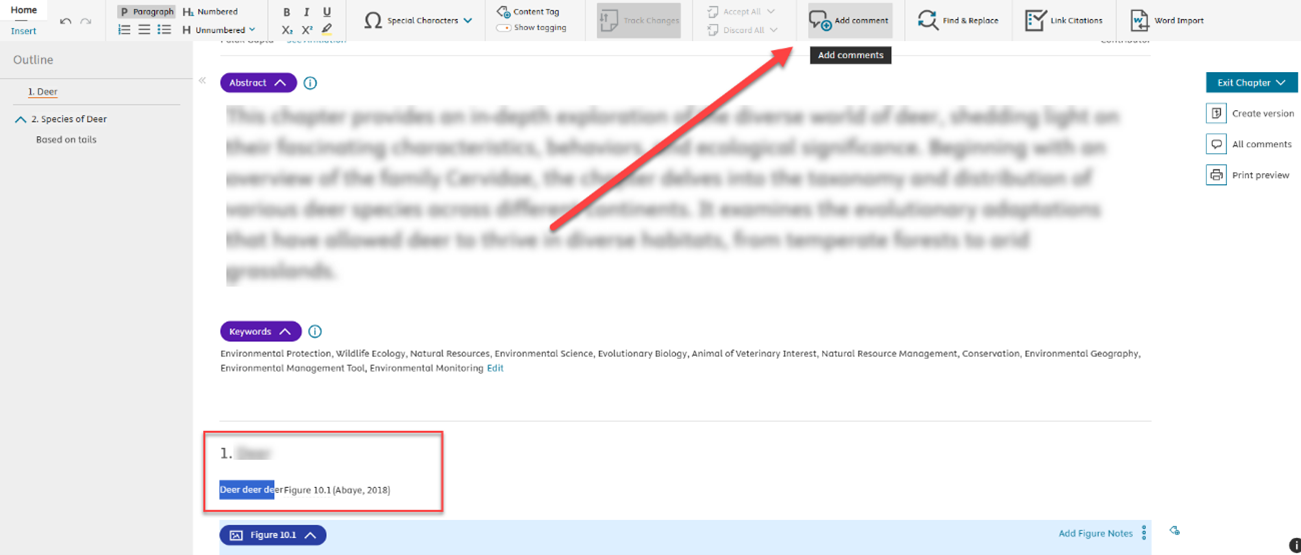
Further details on adding comments here: What’s the difference between chapter comments and chapter notes?opens in new tab/window
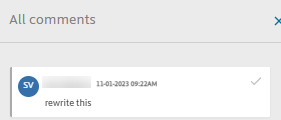
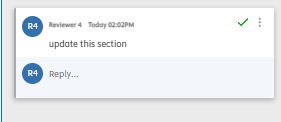
If your review is non-blind, your name will appear in the comments, if it’s blind, then a code will identify different reviewers:
Non-blind review comment:
Blind review comment:
If you have another role on the project such as contributor and are also a blind reviewer, then you will need to be added as a blind reviewer under a different email address to retain anonymity. We recommend working in an incognito window or different browser for the best access experience.
If you know that there are multiple reviewers on a chapter and you need to share the chapter with your co-reviewers, then we recommend entering a comment that you have reviewed and selecting Exit & Unlock so that another reviewer may pick up the chapter.
If you are the last to review, or the sole reviewer, then please use the "Exit Chapter" button and select Exit and Send.
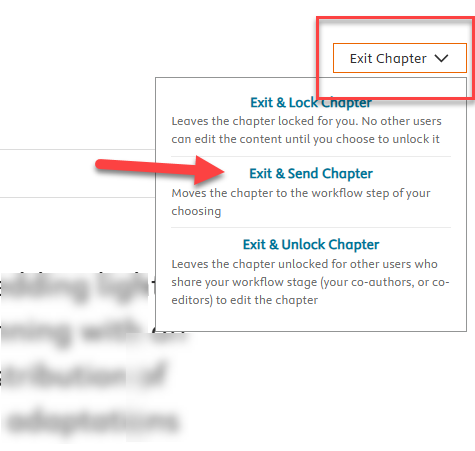
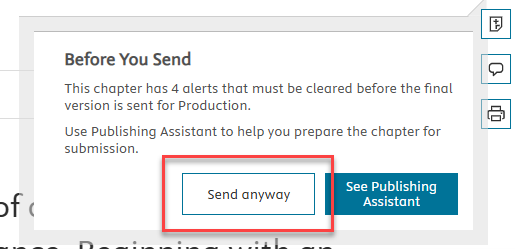
A pop-up message pointing out the chapter alerts will appear. Chapter alerts are for the authors to fix, so you can use Send anyway to move further.
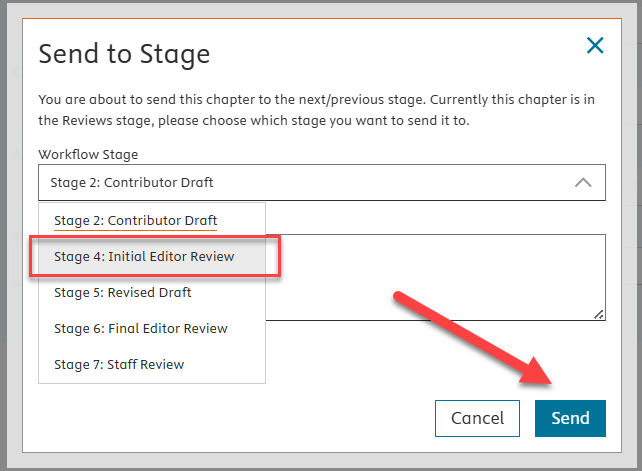
From the drop-down menu, select Initial Editor Review. You can add further comments in the text box and then click on Send to confirm.
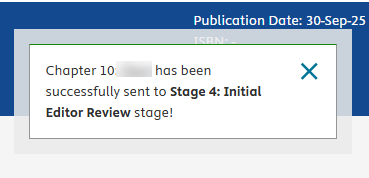
The chapter will move to the next stage, and you won’t have access to it anymore.
Thank you for completing your review! We appreciate your time, expertise, and collaboration!
Did we answer your question?
Recently viewed answers
Functionality disabled due to your cookie preferences