
How can I search for a specific user or a group of users in my organization using the Elsevier Admin Console?
Last updated on August 03, 2026
Overview
The Elsevier Admin Console allows institutional administrators to easily locate and manage users affiliated with their organization. You can search for an individual user, identify users based on status, Admin roles or filter groups of users using built-in search parameters.
This guide walks you through how to perform searches and apply filters to quickly find the user(s) you need.
Step 1: Sign in to the Elsevier Admin Console
- Go to: https://adminconsole.elsevier.com/
- Sign in using your administrator account.
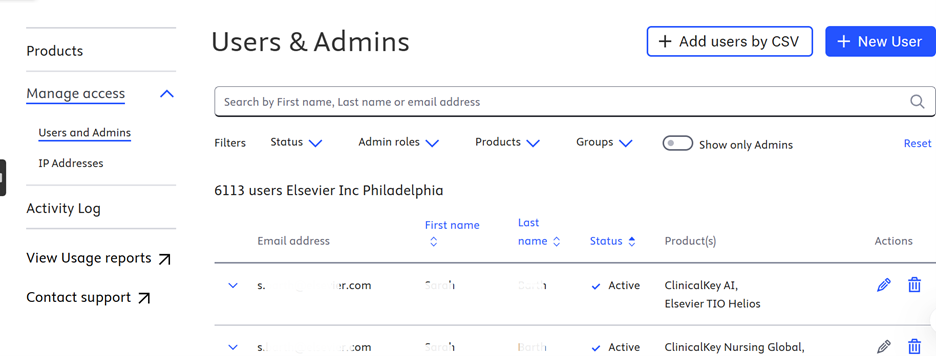
Step 2: Open the Users Page
- Click Manage access
- Select Users and Admins.
You will now see the full list of users associated with your organization
Step 3: Use the Search Bar
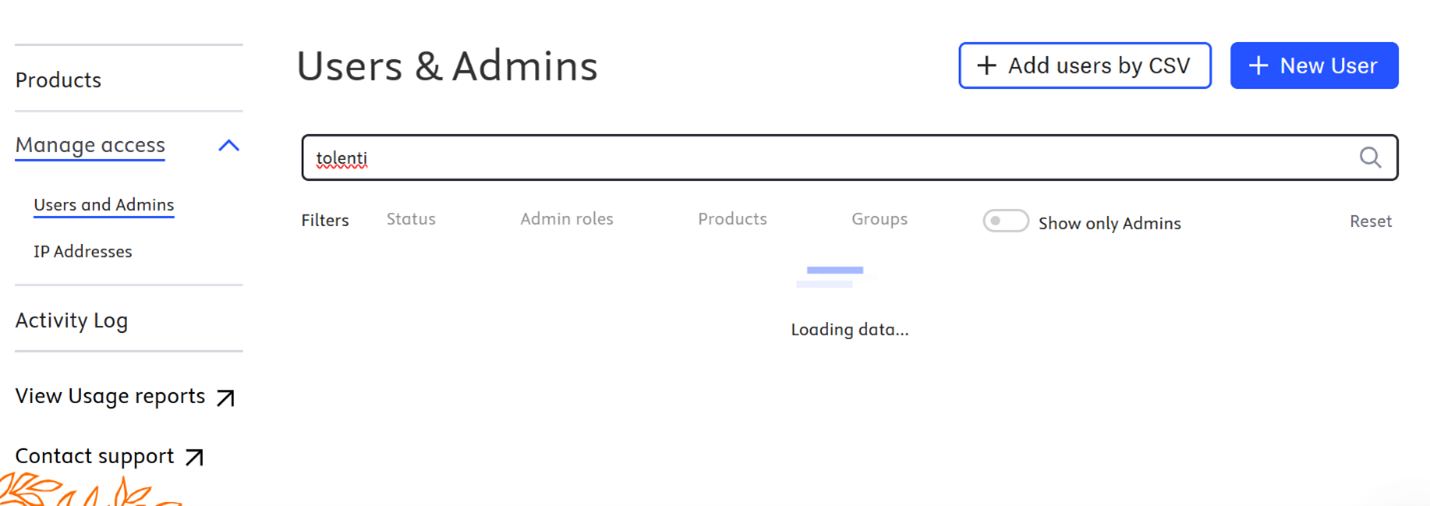
Use the search bar at the top of the user list to find a specific individual.
You can enter:
- Full email address
- First or last name
Tip: The search updates automatically as you type.
Step 4: Apply Filters for Group Searches
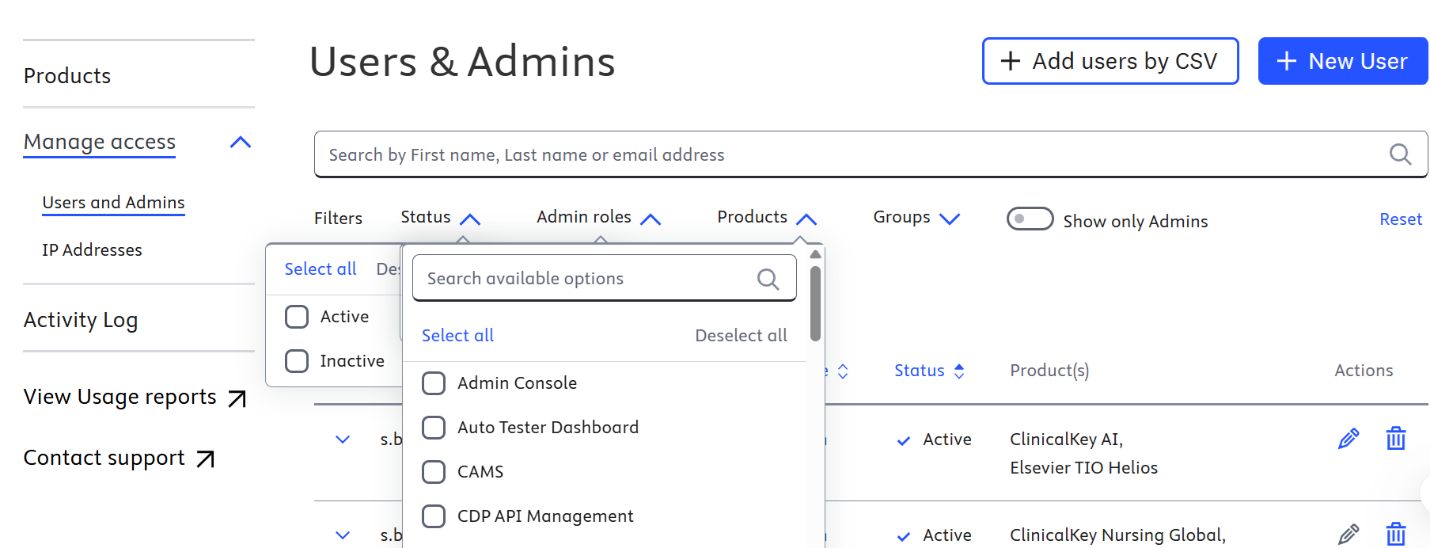
To locate a group of users, click Filters and choose from the available options:
Available Filters:
- Status:
- Active
- Inactive
- Admin Roles:
- Select All
- Deselect All
- Products: Filter by specific institutional product subscription
- Group: Filter by group in an account
You can apply multiple filters at once for more precise results.
- Can’t find a user?
- Check spelling or try using a partial name.
- Confirm the user has registered or is still associated with your organization.
- User not appearing under your institution?
- The user may be linked to a different organization. You may contact Elsevier Support for assistance.
- You need to remove or update users?
- Use the Edit option next to each user record.
If you’re unable to locate a user or believe a user is incorrectly associated, please contact Elsevier Support.
Did we answer your question?
Related answers
Recently viewed answers
Functionality disabled due to your cookie preferences