
View by category
A Publication Set is a static set of up to 200k documents. It allows for deep analysis of a specific research area, and being static provides a consistent snapshot enabling comparisons over time. You can define it by importing a set of publications, using a sub set of your saved Researcher publications or using the Save as option when looking at any set of documents in SciVal.
- Define a Publication Set using the Save as Publication Set option
- Click on a publication link in SciVal, for example the "View list of publications" link on the Summary page
- Refine the publication list using the filters on the left side, so that there are less than 100k publications
- Click Save as Publication Set
- Name, tag and create the Publication Set
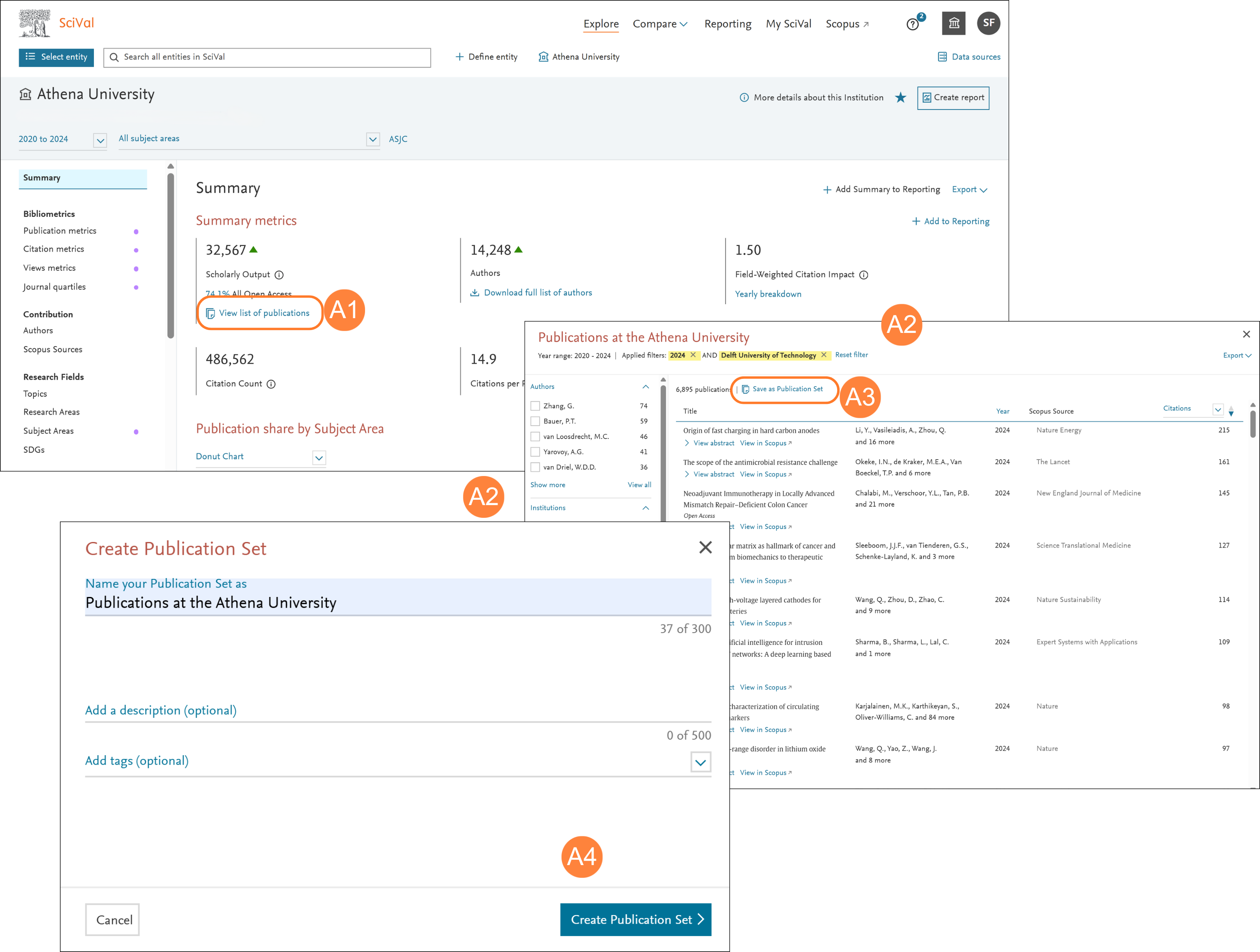
Create bespoke Publication Sets representing strategic priority areas or for scenario modeling.
- Importing Publication Sets:
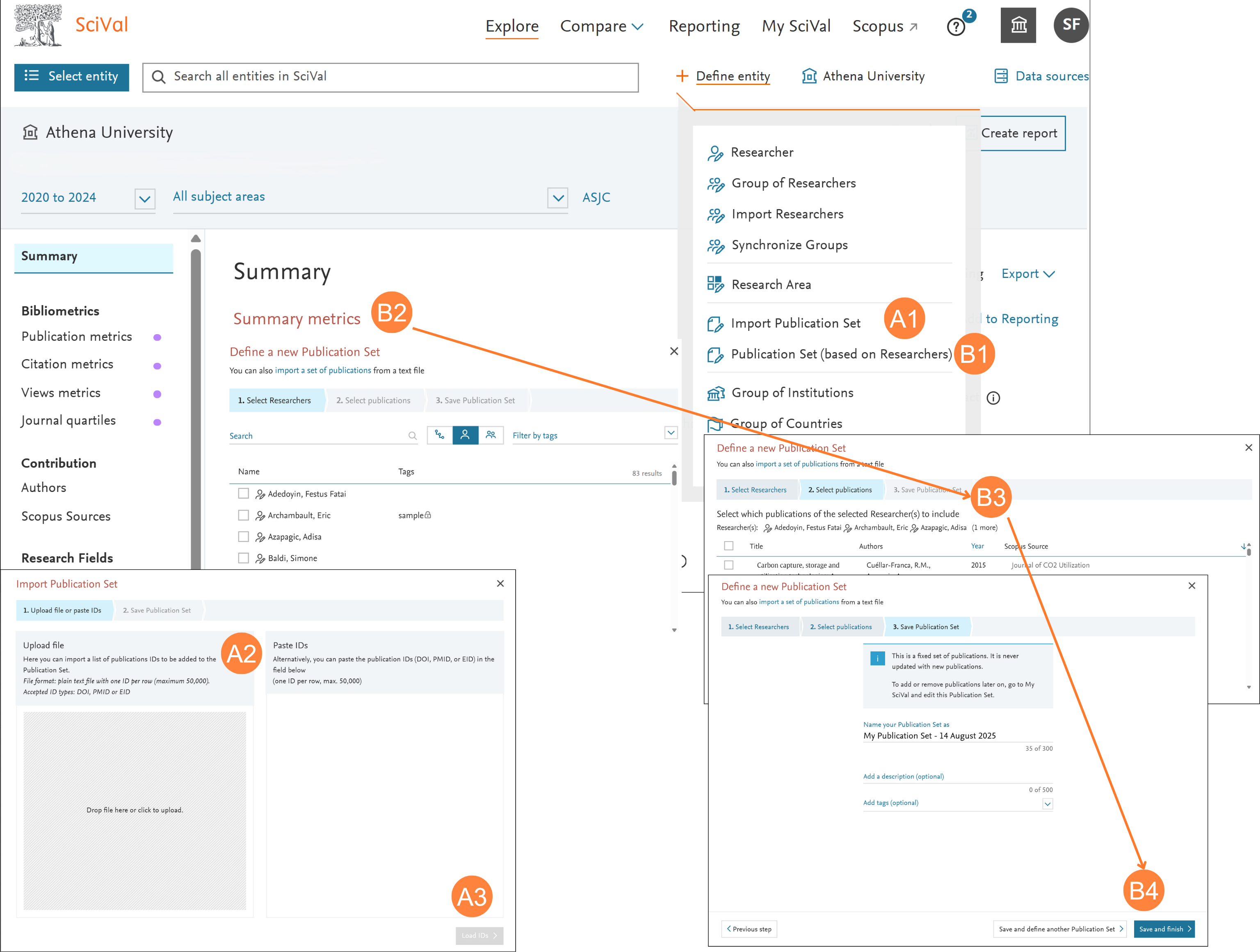
- Import Publication Sets
- Click Import Publication Set in ‘Define entity’ section
- Select ID format for your Publications of interest from one of the following:
- Scopus EID Unique identifier assigned to all Scopus records
- PubMed ID Unique identifier assigned to PubMed records
- DOI (Digital Object Identifier) Persistent identifier managed by the International DOI Foundation for use on digital networks
- Paste IDs or create and upload a text file (ANSI format) containing up to 50,000 publication IDs, one per line, and follow the workflow to upload the file
- Confirm publications and save
- Define a Publication Set from a subset of any Researcher’s publications:
- Create a new Publication Set
- Click Publication Set (based on Researchers) in ‘Define entity’ section
Note: You need to have pre-or self-defined researchers added to your entity selection panel to activate this menu
- Select Researcher(s) of interest
- Select the required publications
- Save Publication Set after adding a name and tags, if required
Did we answer your question?
Related answers
Recently viewed answers
Functionality disabled due to your cookie preferences