
How do I get access to ScienceDirect from anywhere?
Last updated on March 02, 2026
We're actively working with organizations to support access from anywhere, so you can continue to do research and study even when your campus or workplace is closed, or when you are on the move. To find out if your company or campus library already supports remote access, check with your librarian or administrator or view your organization's website.
Note for librarians or administrators: If you would like to enable remote access for ScienceDirect or any other Elsevier product, complete this request form and you will be contacted by our dedicated customer support team shortly.

If ScienceDirect recognized your company or library network, you will see the name of your organization on the top right of any ScienceDirect page.
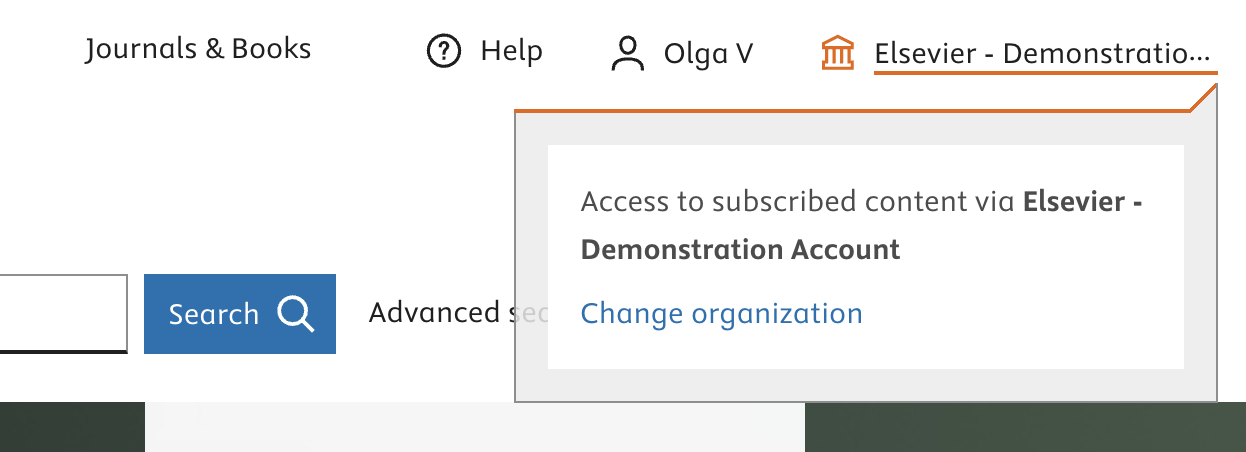
Select the name in the header to view the full name or to change organization.
You might want to change your organization, for instance if you changed jobs. You can find this option on the following pages:
On all pages
Select the name in the header, and select 'Change organization'.
On the Article page
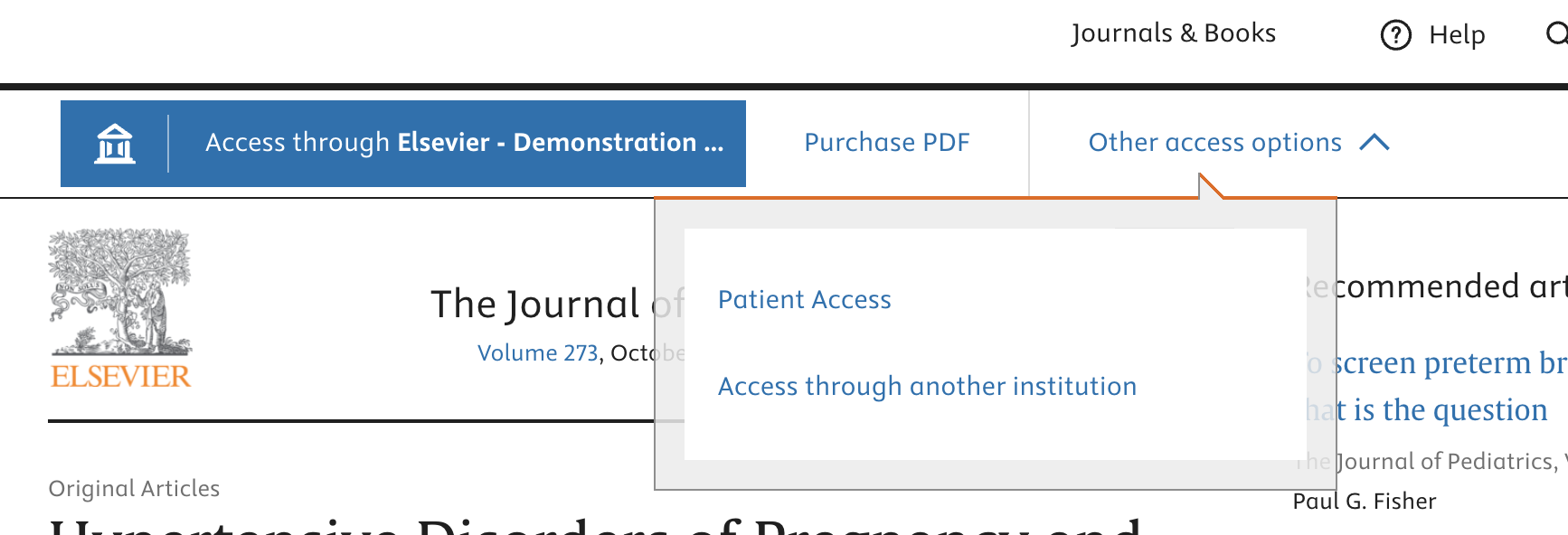
Select the 'Other access options' dropdown-menu, and choose 'Change organization'.
ScienceDirect offers two different paths to start this process:
- Select the blue access button at the top of any Article page.
OR
- Select ‘Sign in’ at the top-right of any page on ScienceDirect and follow the steps on the screen.
Follow these steps to find out if your organization offers remote access to ScienceDirect:
- Visit our Institutional access pageopens in new tab/window.
- Please note: It is possible that the system recognizes a previous sign in from your browser. If you wish to gain access via another institution, select ‘Try another way’ when the option is presented to you on the screen.
- Enter your institutional email address or the name of your organization, university or company.
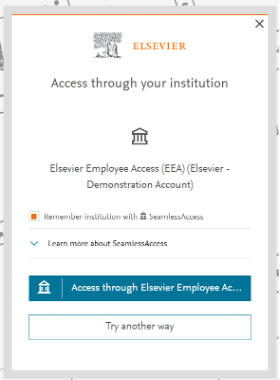
- If your institution allows you to sign in with your institutional credentials you will see one of the following screens:
- The ‘Access through your institution’ screen.
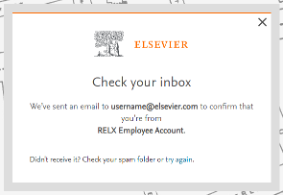
- Some institutions prefer validation through email links. In this case we will send a validation link to your work email address.
- If your organization has not set up remote access to ScienceDirect yet, ask your Librarian or Administrator about the options.
Visit the ScienceDirect ID registration pageopens in new tab/window and type in the registration ID and passcode you received from your librarian or administrator.
Once you have successfully registered, you will be asked to sign in or create your personal Elsevier account using your corporate or institutional email address. Learn more about the benefitsopens in new tab/window of an Elsevier account.
Did we answer your question?
Related answers
Recently viewed answers
Functionality disabled due to your cookie preferences