
Using Deep Linking with Osmosis
Last updated on July 27, 2026
Overview
Deep linking lets you place links to specific Osmosis content (Learn pages, playlists, and study schedules) directly inside your LMS course. When a student clicks the link, they are authenticated through the same LMS session and land directly on the Osmosis content, with no separate Osmosis login. Deep linking is enabled through Osmosis LMS Access (LTI 1.3) authentication only.
Before you begin
- Your institution must have Osmosis LMS Access (LTI 1.3) configured for your LMS. See the per-LMS “Osmosis LMS Access — Set-up Instructions,” or check with your LMS administrator.
- You need faculty/instructor access in your LMS, with permission to add external tool links to courses.
- The Osmosis LTI 1.3 tool must be available in your course.
How it works
Your LMS launches Osmosis through Elsevier’s secure gateway using LTI 1.3. Because authentication happens through your LMS, students who follow a deep link are signed in automatically and taken straight to the linked Osmosis content.
Step-by-step
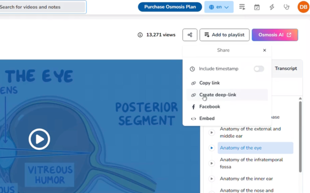
- Find the Osmosis content you want to link. In Osmosis, navigate to the Learn page, playlist, or Study Schedule you want to share and copy its link.
Sharing path on Osmosis:
Deep link pop-up on Osmosis:
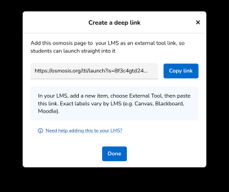
- Add the link in your LMS course. In the relevant course module, add the Osmosis LTI 1.3 tool as a course/module item and enter the copied link.
- Publish the item so it is visible to students.
- Confirm the link. Open the item yourself; you should be taken directly to the linked Osmosis content, authenticated through your LMS session.
Notes
- Deep linking requires Osmosis LMS Access to be set up for your institution first.
- Students access the linked content through their LMS-authenticated session. no separate Osmosis login is needed.
Did we answer your question?
Related answers
Recently viewed answers
Functionality disabled due to your cookie preferences