
View by category
How do I use the search filters?
Last updated on August 17, 2026
You can add individual filters or combine the filters to construct a search. For more information see How do I search for images?opens in new tab/window
How
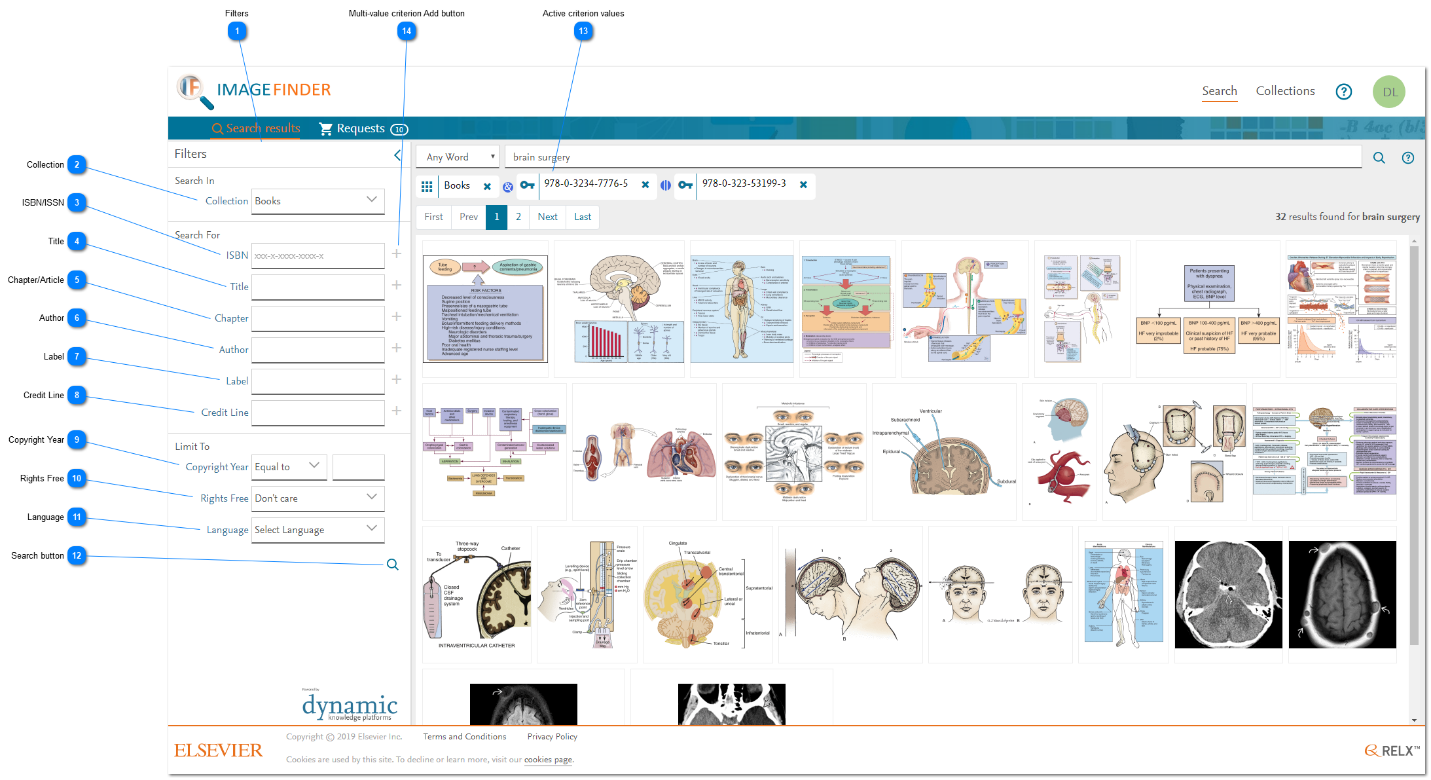
- Filters: The filters panel is displayed on the left of the 'Search' feature in Image Finder. The filters can be used to narrow the search. Note: The search is being narrowed rather than the search results are being narrowed. That is, the filters are combined with the search text in the subject field (Search text box) to determine what the search returns rather than being applied to the results returned from a search that uses the subject criteria only. In most cases, the outcome will not be any different, but there may be cases where it is.
Filters are either single value or multi-value. The single value filters enable you to make a single exclusive choice that constrains the search. For example, you can choose one publication type or choose not to be constrained. However, you cannot combine an arbitrary subset of publication types.
With a multi-value filter, you can choose more than one value for the filter and all the values will be matched by the search. For more on how filters work together, see 'Combining filters' section below. - Collection: The 'Collection' filter enables you to restrict the search to only include images from books, journals, or a specific collection. If you do not want to restrict the search, you can select ‘Any’. Using this filter also changes other filters that are available to you. (Cf. ISSN/ISBN, Journal, Title, Author).
If you change the Collection selection after you have applied multi-value filters, then any inconsistent multi-value filters are removed from the Active criterion values.
If you set the Collection selection to ‘Any’, the filter for collection that is displayed underneath the Subject field (Search text box) are removed.
Setting Collection to any other value displays a filter with that selected value underneath the Subject field.
If you remove this filter from the Active criterion values, then Collection is reverted back to ‘Any’ in the filter panel because that is the default value. - ISBN/ISSN: The 'ISBN/ISSN' filter is only available if the Publication type is set to ‘Book’ or 'Journal. The label and behaviour of this filter changes depending on which publication type you have selected. For 'Books', the label is 'ISBN' and for 'Journals', it is 'ISSN'.
If you change the Publication type filter that is incompatible with this filter, Active criterion values that you have already applied are removed.
This filter enables you to restrict the search to one or more books or journals. To apply this filter, click the ‘+’ button on the right of the filter field.
This filter field accepts a formatted value or an unformatted value of an ISBN/ISSN. However, this field does not accept a value with too few or too many digits.
For ISBNs, this filter field accepts 10 and 13 digits. If a 10 digit ISBN is used and a matching image is then added to the Request Cart, the Request Submission process converts the 10 digit ISBN to the corresponding 13 digit ISBN and a note is appended to the request that looks like this: " |>>| ** ISBN 9780323014618 converted from 0323014615". - Title: The Title filter matches parts of words or whole words in the name of the publication (book name or journal name).
- Chapter/Article: The 'Chapter/Article' filter matches parts of words or whole words in the name of the book chapter or journal article name.
- Author: The Author filter enables you to enter the name of an author. The text you enter here matches exactly with a whole word in the author’s name for a journal article or book chapter. The word might be the first or last (family) name (or another given name, if there is one).
If you enter more than one word, the filter attempts to match the author's name precisely in the order that you have entered the values. The match ignores case sensitivity and any extra white space characters in the author's name. - Label: The Label filter matches parts of words or whole words in the label of the image (e.g. Fig 1.5). If you are not sure about the format of the label, try just using the number part.
- Credit Line: The Credit Line filter enables you to enter the name of a person that is mentioned in the credit line of an image. Not all images have credit line information. If you use this filter, Image Finder is finding images that have a credit line. The text you enter here matches exactly with a whole word in the person’s name in the credit line. The word might be the first or last (family) name (or another given name, if there is one).
If you enter more than one word, the filter attempts to match the person's name precisely in the order that you have entered the values. The match ignores case sensitivity and any extra white space characters in a person's name. - Copyright Year: The Copyright Year filter enables you to restrict the search based on the copyright year. The filter uses an operator to determine how the matching comparison is made. Operator values are:
- Equal to
- Earlier than
- Earlier [than] or Equal [to]
- Later than
- Later [than] or Equal [to]
- Not available
- Rights Free: The Rights Free filter enables you to restrict the search based on the available rights information. When images are uploaded into a collection, basic information about the re-use rights are captured:The vast majority of images that come from books or journals have no recorded rights information, so re-use of these images must follow the normal permission seeking process. If you set this filter to ‘Yes’, you are restricting the search on images in collections.
Rights free
Meaning
Yes
The image can be re-used without constraint. Permission seeking is unnecessary
No
The image cannot be re-used without constraint. Use of this image must follow the normal permission seeking process and use of the image might incur a fee
- Language: The Language filter limits the results to publications and collection images that have been associated with a specific language.
- Search button: When you click on the magnifying glass icon in the filter panel, any multi-value filter is applied as if its ‘+’ button had been clicked and any single value filter is applied by replacing any values that were already specified for that filter.
- Active criterion values: The values that are in effect (i.e. have determined the contents of the Results grid) are displayed under the Subject field (Search text box). You can combine (link to expandable section below) these values to construct the search. You can remove any Active criterion values by clicking on the ‘x’ for that filter value. When you do so, a new search is executed immediately and the search results are refreshed.
- Multi-value criterion Add button: When you click on the ‘+’ button that is next to a multi-value filter, the criterion value is displayed together with any other active criteria underneath the Subject field (Search text box). The filter field itself is cleared and the search is executed immediately using the criterion value.














The filters that you choose are combined with the subject to construct the search so that only those images that match the filter values and the subject are returned. Single value filters are combined so that all their values must match the image values. The multi-value filters are combined so that any of the values for a specific filter can be matched to get a result.
For example, combining single value filters and multi-value filters to search for images where:
The Publication type matches
AND ISSN/ISBN value 1 OR ISSN/ISBN value 2 OR ISSN/ISBN value 3 .. etc. match
AND Author value 1 OR Author value 2 OR Author value 3 ... etc. match
AND Credit line value 1 OR Credit line value 2 OR Credit line value 3 ... etc. match
AND The Copyright year is in range
AND The subject text matches text in the image title/caption
With filters values specified for the above.
Filters representing the Active search criteria are displayed underneath the Subject field (Search text box) as follows:
Filter values for the same multi-value filter are displayed adjacent to each other and separated by an || symbol to denote that the values are being searched on using the OR operator with that filter. Single value filters and groups of multi-value filters are separated by an & symbol to denote that the values are being searched on using the AND operator.

How
- Filter type: The Filter type icon indicates the type of filter being applied in the search. The icons represent:
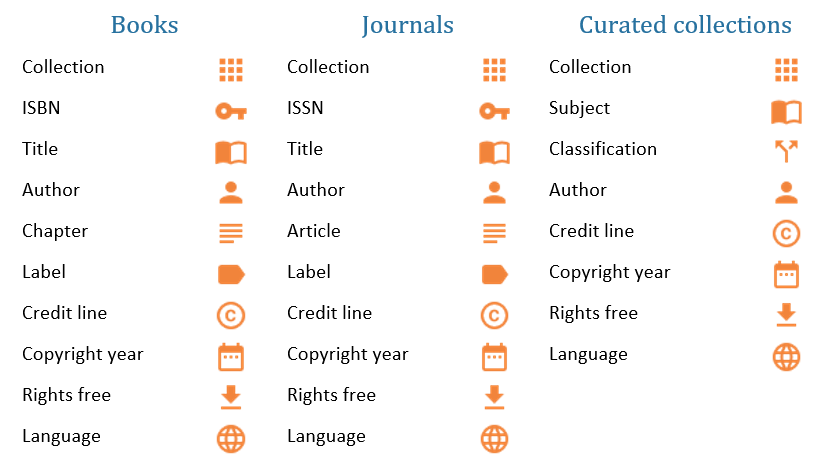
- Filter value: The Filter value shows the value of the filter that you have entered in the Filters panel.
- AND operator: The & symbol shows that the filters to the right and left of the symbol are being searched on using the AND operator. This means that both must be true to meet the condition. If either the left filter or the right filter of this operator is a multi-value filter, then all of its adjacent filters that are being searched on using the OR operator will be evaluated first to determine if this side of the AND is true.
- OR operator: The || symbol shows that the filters to the right and left of the symbol are being searched on using the OR operator. This means that either can be true to meet the condition.
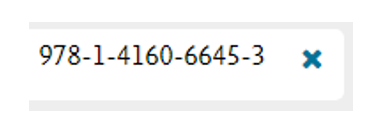
- Remove filter: Click the ‘x’ button of a filter to remove it. When you do so, the new combination of criteria is applied immediately and the search results are updated accordingly.




Did we answer your question?
Related answers
Recently viewed answers
Functionality disabled due to your cookie preferences