
View by category
How do I log in to Image Finder through my institution?
Last updated on August 17, 2026
Follow these steps to log in via your institution to access Image Finder as an internal user:
- Click the 'Sign in' button on Image Finder homepageopens in new tab/window.
- Click the 'sign in via your institution' button on the Welcome page.
- Type in/Select 'Elsevier Employee Access (Elsevier - Demonstration Account)' in the 'Institutional email or name of institution' field.
- Click the 'Access through Elsevier Employee Access' button.
- If you are presented with an "RELX Sign in" dialog box, please provide your '[email protected]' to continue. For example: [email protected]
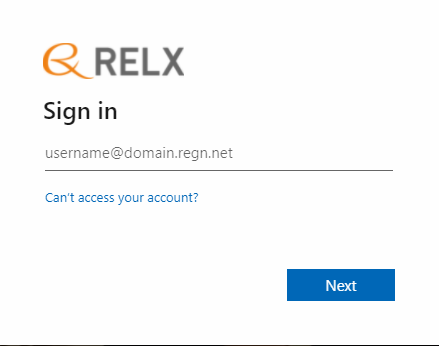
- You might be asked to log in using your federated access credentials. Please go through this step with the login credentials you log in to your computer with every day.
- Upon successful login, the 'Rights and Permissions' disclaimer is displayed. Read and acknowledge the disclaimeropens in new tab/window.
You are now logged in as an Image Finder internal user with an orange avatar (circle) with your initials on it on the upper-right corner.
Did we answer your question?
Related answers
Recently viewed answers
Functionality disabled due to your cookie preferences