
View by category
Why do I see the “Instructions from your organization” screen and how can it be customised?
Last updated on May 13, 2026
You may encounter the 'Instructions from your organization' screen after selecting your company, institution, university… on the 'Find your organization' screen.

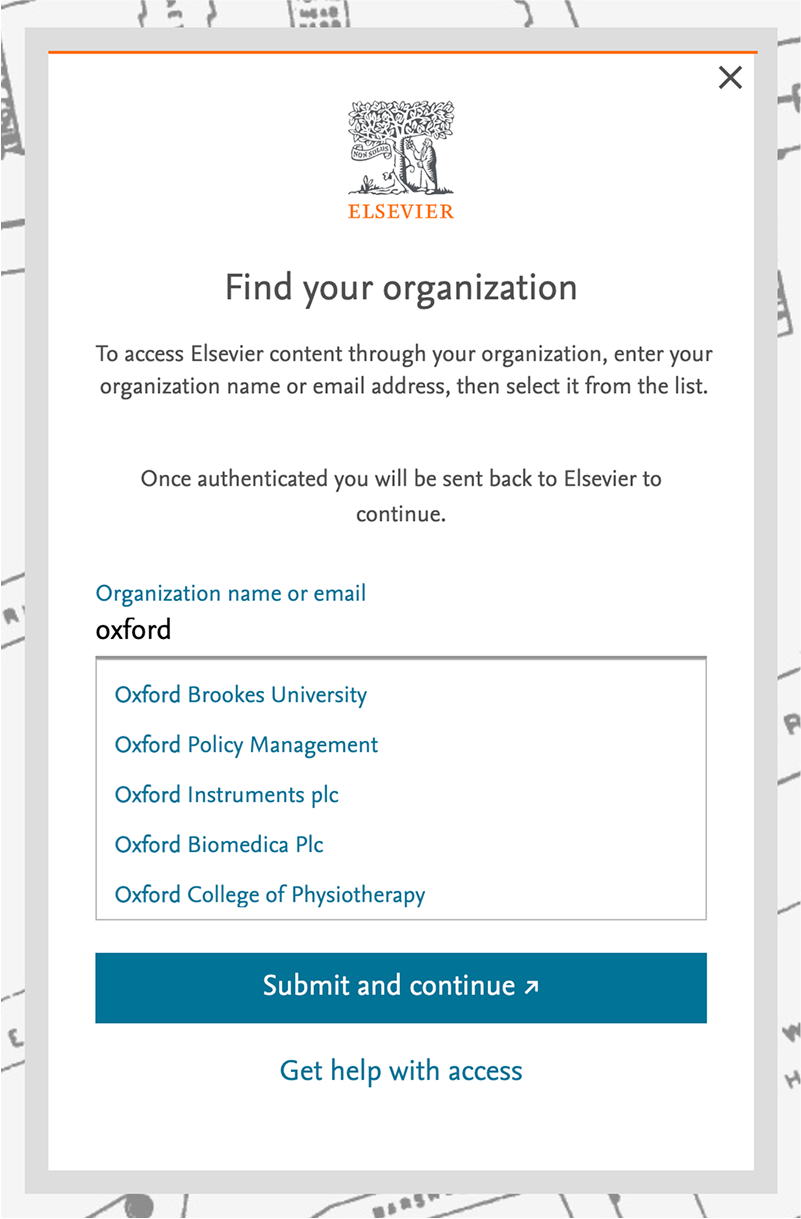
Organizations (including libraries, institutions, and corporate entities) subscribe to some Elsevier products but not to others. As an example, your organization may subscribe to ScienceDirect but not to Funding Institutional.
Only after you have selected an organization, we will check which access methods your organization provides for that specific product. Whenever your organization uses email domain confirmation or SAML SSO you will be directed to the relevant flow. However, if your organization is not subscribed to the content of the product you are visiting, or if your organization uses other access methods, such as IP or VPN, you will see the 'Instructions from your organization' screen.
Whenever this screen appears, ensure you are within the IP range, or try connecting to your organization's VPN.
If you are an administrator or librarian, it is possible to customize the message shown under the screen 'Instructions from your organization'. The message can give users instructions on how to obtain remote access via their institution. It can be used for the following:
- Include a link to the institution's proxy server portal.
- Provide instructions on signing in via VPN (see below example).

If you wish to customize the message shown in the screen 'Instructions from your organization', contact us using the email optionopens in new tab/window below so we can set it up for you.
Whenever this message is not customized, the default message will be shown (see example below).
Did we answer your question?
Related answers
Recently viewed answers
Functionality disabled due to your cookie preferences