
View by category
How do I remove a user?
Last updated on May 21, 2024
As the Company Administrator you can disable or delete a user from the platform. Please note that user in this context means a user on the ordering platform, not an end user of the product. If you wish to remove end users of the product, please be advised that changes will not take effect until the renewal date.
Removing a user from the platform means that they will no longer be able to purchase through the platform.
- Go to your Account page and select ‘Company Users’ from the left-hand menu.
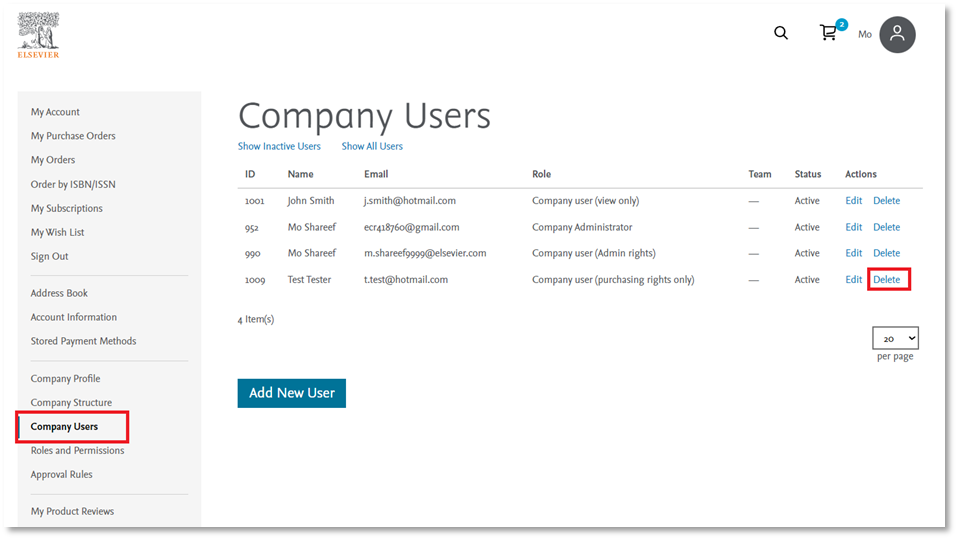
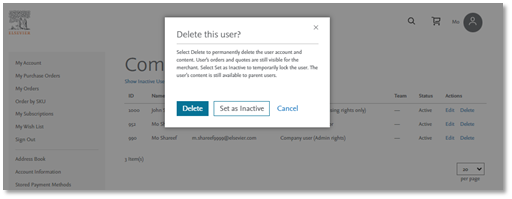
- Click ‘Delete’ on the Company User screen (above), and then click ‘Delete’ again when presented with the screen below. Alternatively, you can temporarily disable a user.
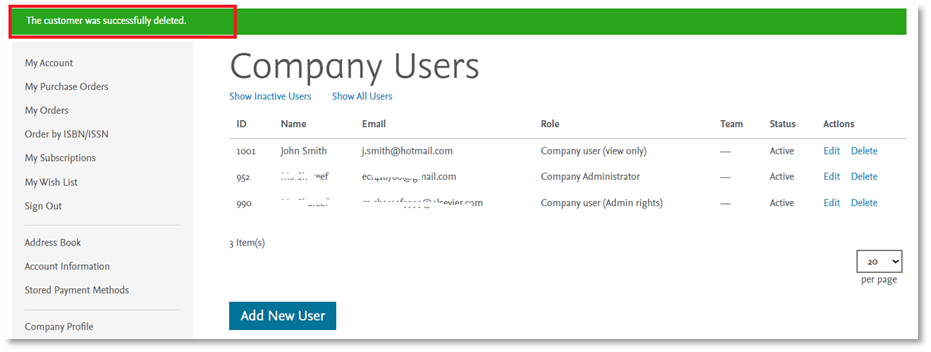
- The Company User has now been deleted.
- The user who has been removed will receive an email confirming removal.
Alternatively, you can contact Customer Service via the email option found at the bottom of this page. Please specify on the form which user(s) you wish to remove, and when (if not immediate).
Did we answer your question?
Recently viewed answers
Functionality disabled due to your cookie preferences