
View by category
How do I add users to the platform?
Last updated on May 21, 2024
Please note that you can add company users to the ordering platform, which would give them purchasing rights. We are in this context NOT talking about end users of the product: they do not have access to make purchases on the ordering platform; they are defined as having access to the product only (post purchase).
As the Company Administrator you can add additional company users to purchase products through the platform, add new roles with selected permissions, and set approval limits. Step-by-step guidance is provided in the Quick Reference Guide: Adding Additional Users, Roles and Approval Limits [for Company Administrators](Opens in a new tab or window)opens in new tab/window
- Login to your Account (you can open your account by clicking on the user icon in the top-right corner).
Your ‘My Account’ page will open.
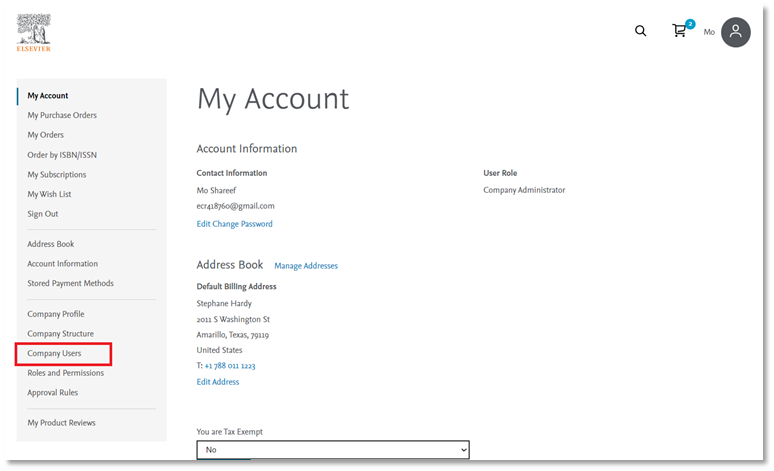
- Select 'Company Users' from the left-hand menu. This will take you to the Company User screen.
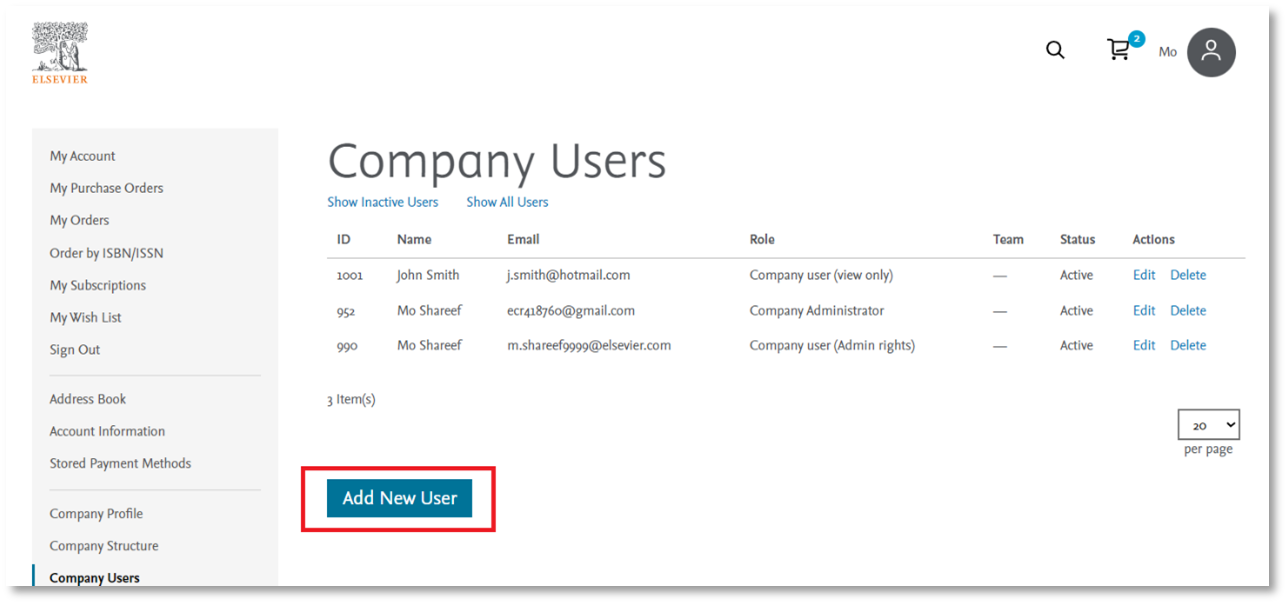
- Select 'Add New User' button. This will bring up a pop-up window to allow you to create a new user.
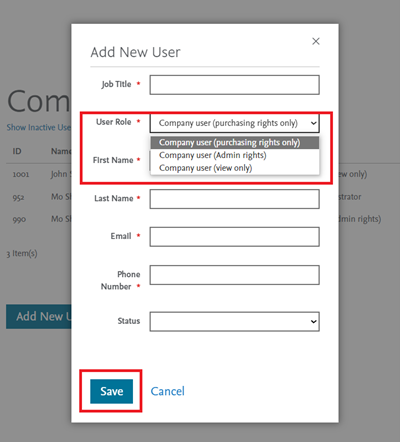
- Complete the fields in the pop-up screen and select, from the drop-down, the role which you wish to assign the user to. There are the following pre-defined roles:
- Company user (purchasing rights only)
- Company user (admin rights)
- Company user (view only)
The company user with admin rights would give someone else the same admin rights as you, the Company Administrator. You will also be able to set up new role profiles and approval limits, see Quick Reference Guide: Adding Additional Users, Roles and Approval Limits [for Company Administrators](Opens in a new tab or window)opens in new tab/window
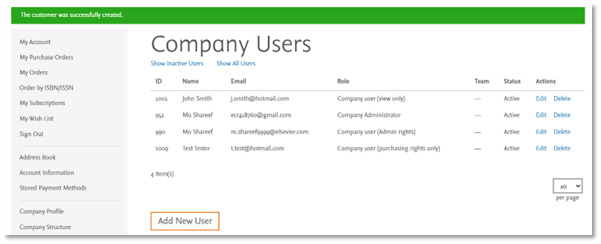
- You can set the status of the new user to ‘active’ and ‘inactive’. When ready, click ‘Save’. The new user has now been added to the platform and will receive a welcome email with instructions on how to login in and use the platform.
Did we answer your question?
Recently viewed answers
Functionality disabled due to your cookie preferences