
In this article you will learn how to:
• Create playlists
• Save videos to watch later
• Edit and manage your playlists
• Share your playlists
• Follow a playlist
How to use Osmosis playlists
Your playlist home page is located here: https://www.osmosis.org/home/playlistopens in new tab/window
Find a video and click the playlist icon to "add" the video to a playlist. This icon appears next to a video title in the search results, on the video page, in the Osmosis library, and on dashboard thumbnails
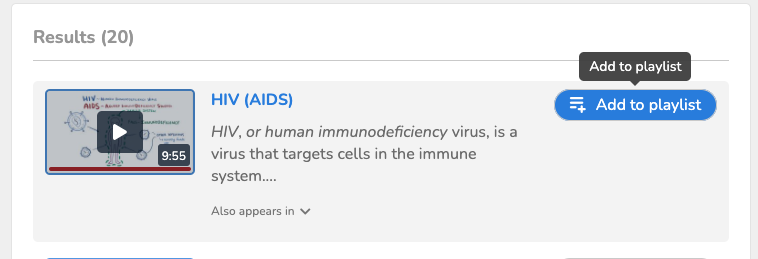
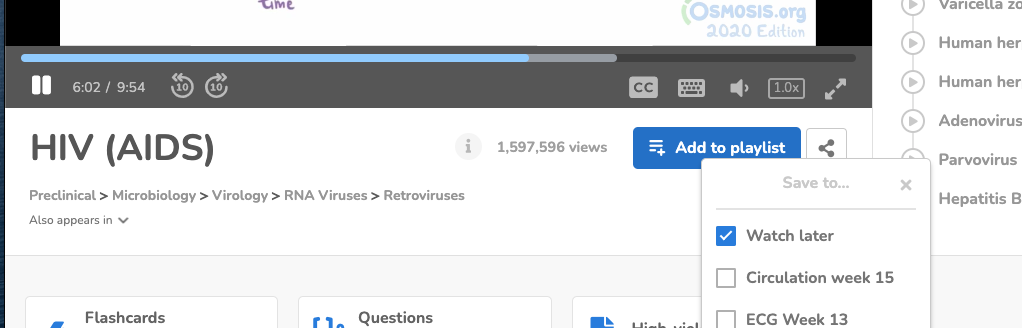
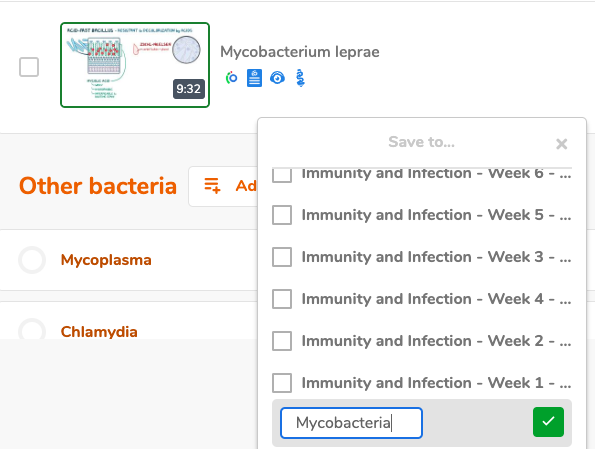
Adding videos to a playlist:
Select “watch later” playlistopens in new tab/window, or create your own
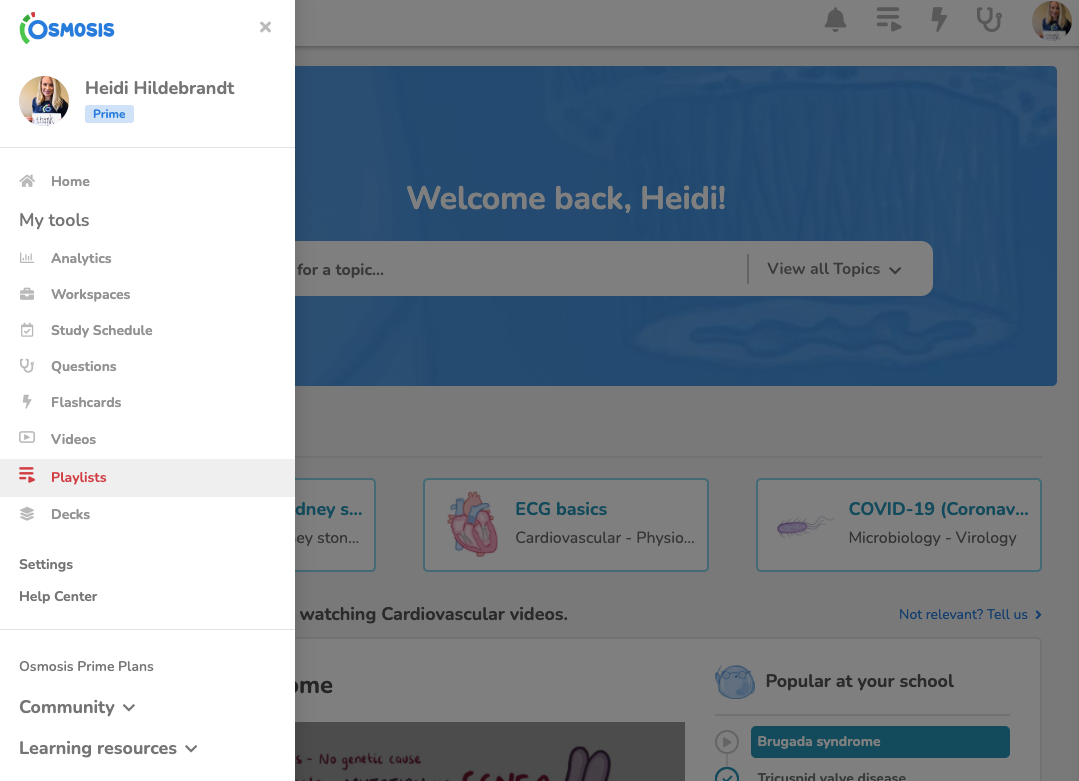
How to view your playlists:
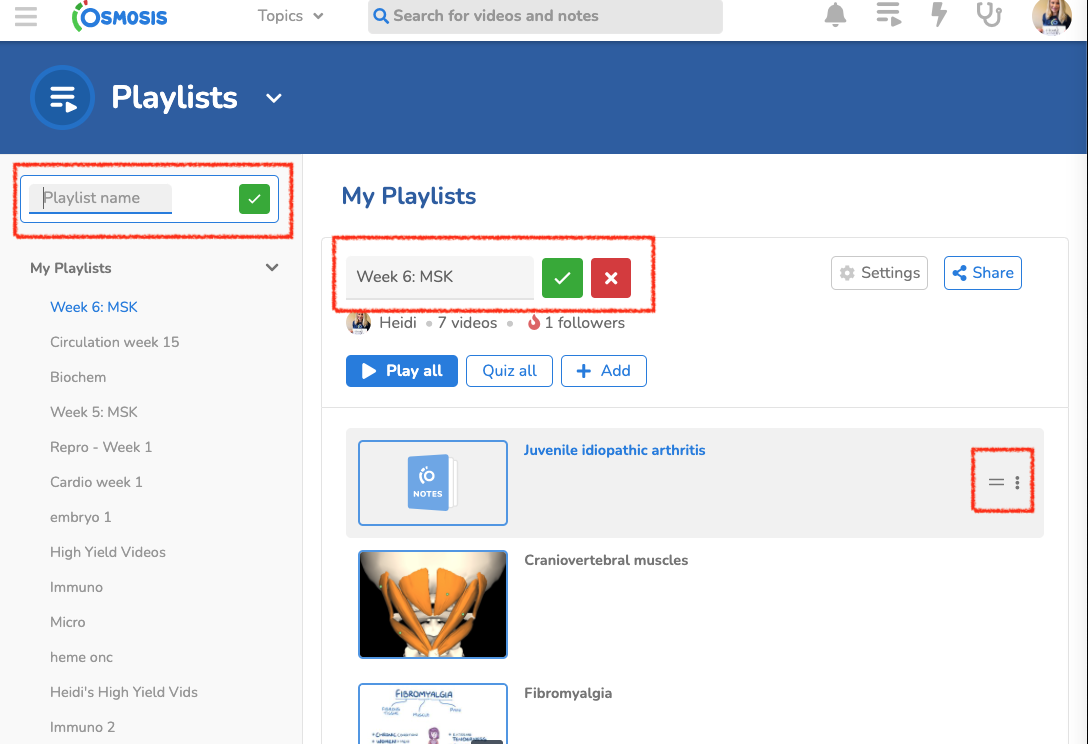
Navigate to your playlistopens in new tab/window under the video section or in your sidebar navigation:
Edit and manage your playlistopens in new tab/window
Rename, reorder (drag and drop), or delete.
Create new playlistsopens in new tab/window
Navigate between different playlistsopens in new tab/window
Note: you cannot rename the "watch later" playlistopens in new tab/window (only).
Watch and share your playlistopens in new tab/window
Better match your curriculum to meet your learning needs by creating a playlistopens in new tab/window exactly how you want, then share it with your classmates to show them how relevant Osmosis really is to your curriculum.
Follow a Playlist
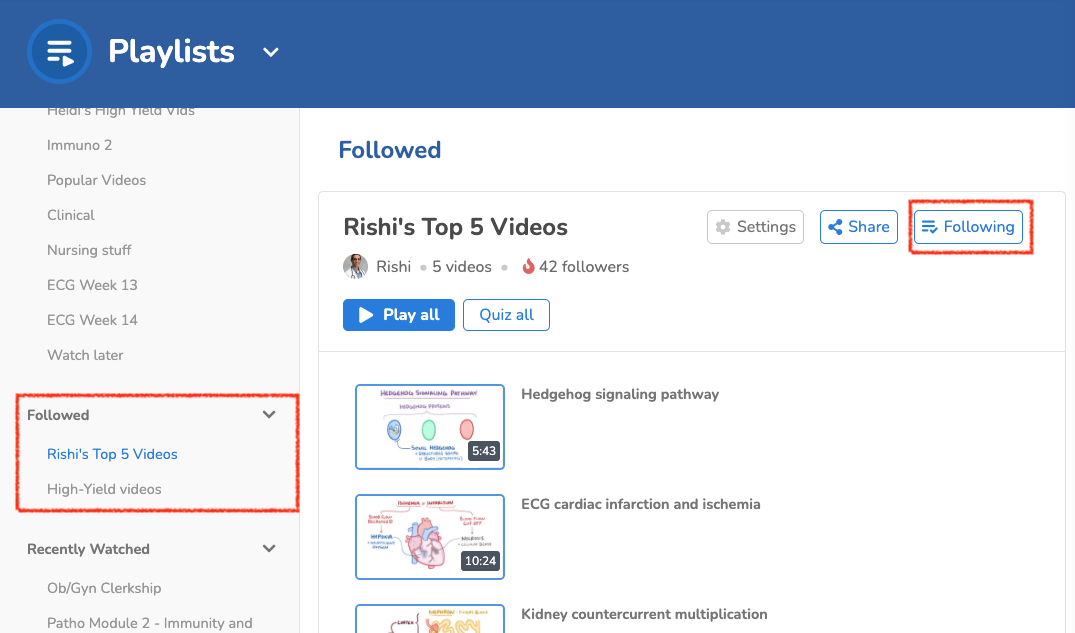
When someone shares a link to a playlist they've created, you can now follow it. Just click on the Follow button, and it will be listed in your menu to the left:
If you have questions, please feel free to contact [email protected]opens in new tab/window.
Did we answer your question?
Recently viewed answers
Functionality disabled due to your cookie preferences