
Getting Started with the Osmosis MD Mobile App
Last updated on October 13, 2025
Also available in
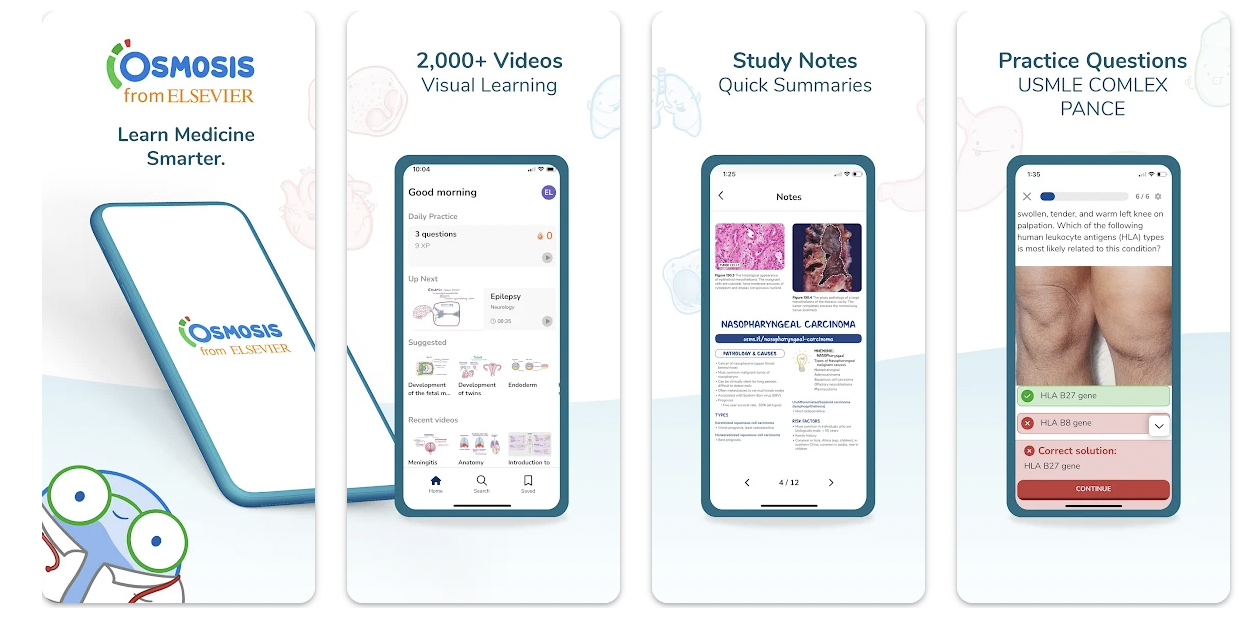
The Osmosis Medicine (MD) mobile app is designed to enhance your learning experience. Below are instructions on how to install, log in, and access various settings and features.
Installation
You can download the Osmosis MD mobile app from the following links:
For Android: Download for Androidopens in new tab/window
Logging In
A. Create a New Account
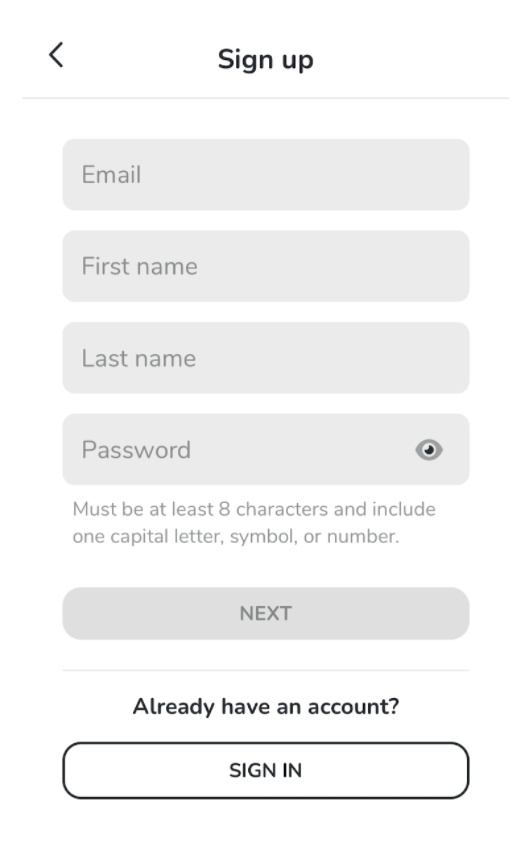
Enter Your Details: Input your school email, name, and desired password. If you don’t have a school email, that’s fine! However, a school email is recommended for a customized experience.
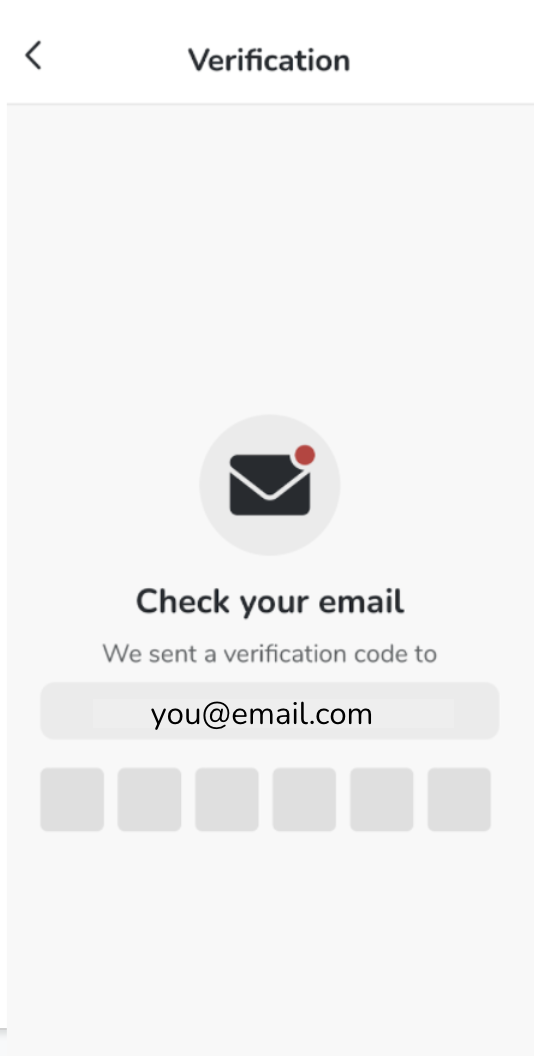
Verification Code: Check your email for a verification code, and enter it when prompted.
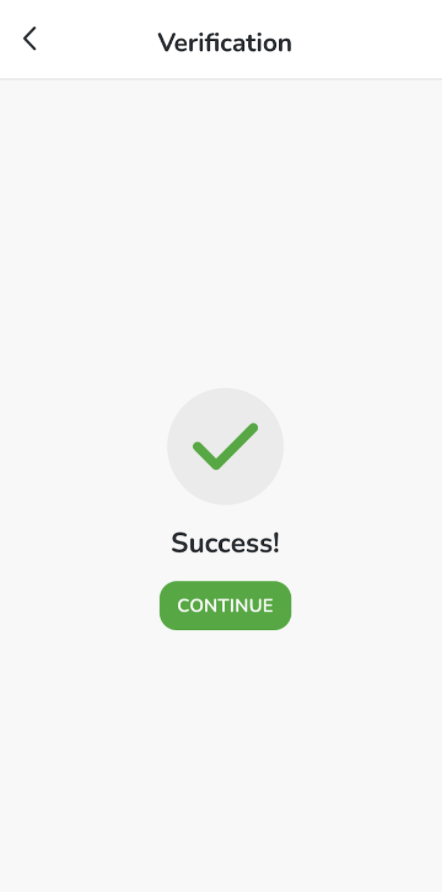
Registration Success: Once confirmed, click Continue.
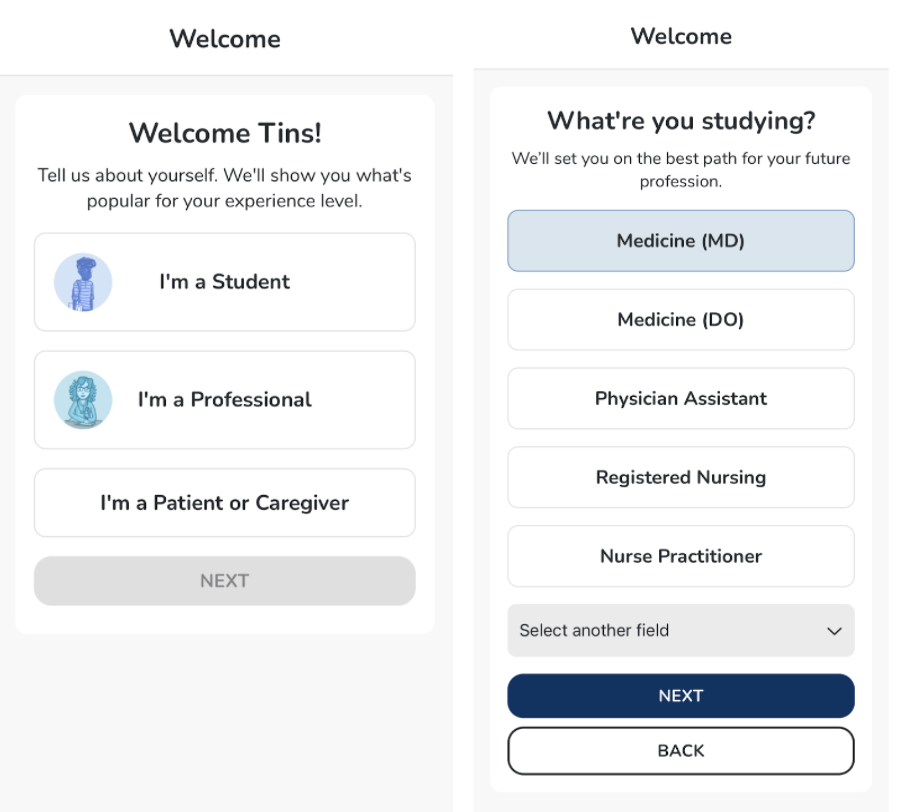
Update Your Profile: Fill in your profile information.
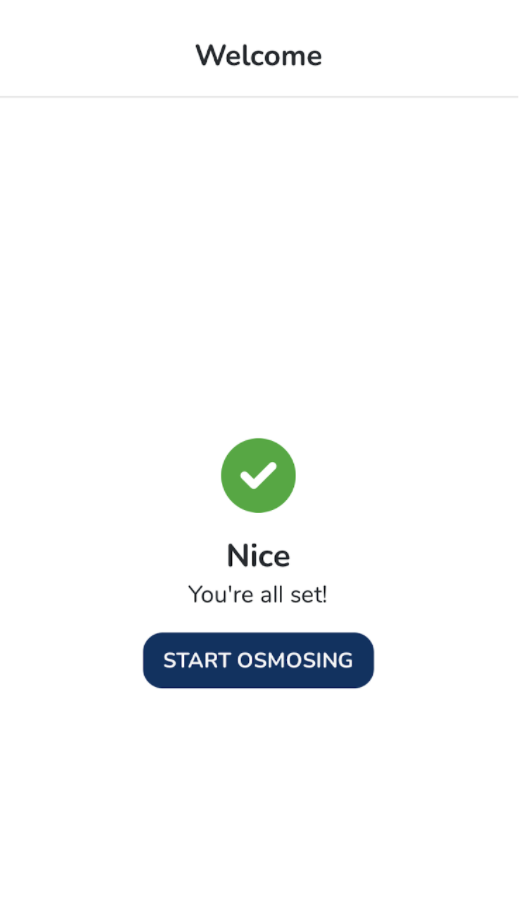
Start Osmosing!
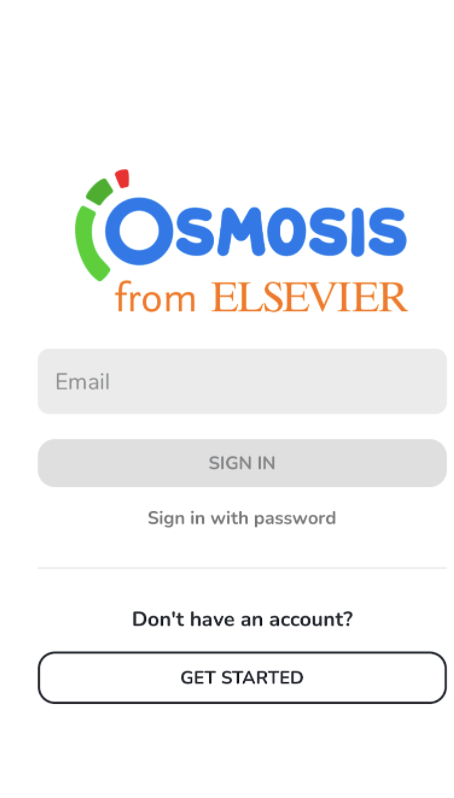
B. If You Already Have an Account
a. Sign in with Email Code
Enter Your Email: Input your registered email address.
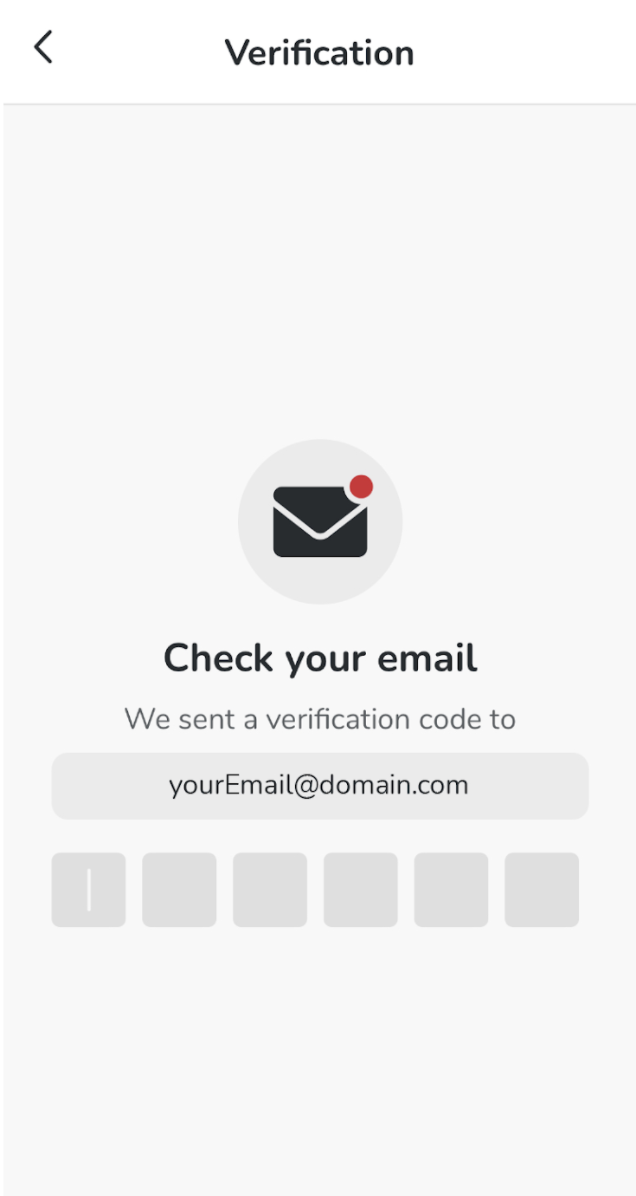
Receive Verification Code: A verification code will be sent to your email. Use this code to sign in on the mobile app and your password (if applicable) on the web.
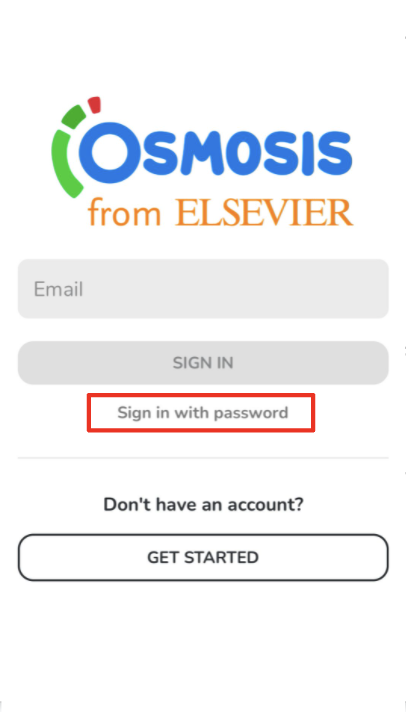
b. Sign in with Email and Password
Click Sign in with Password on the sign-in page.
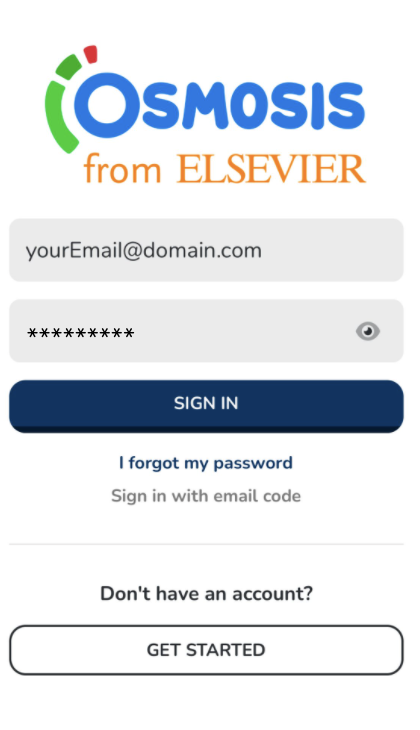
Enter your email and password to log in.
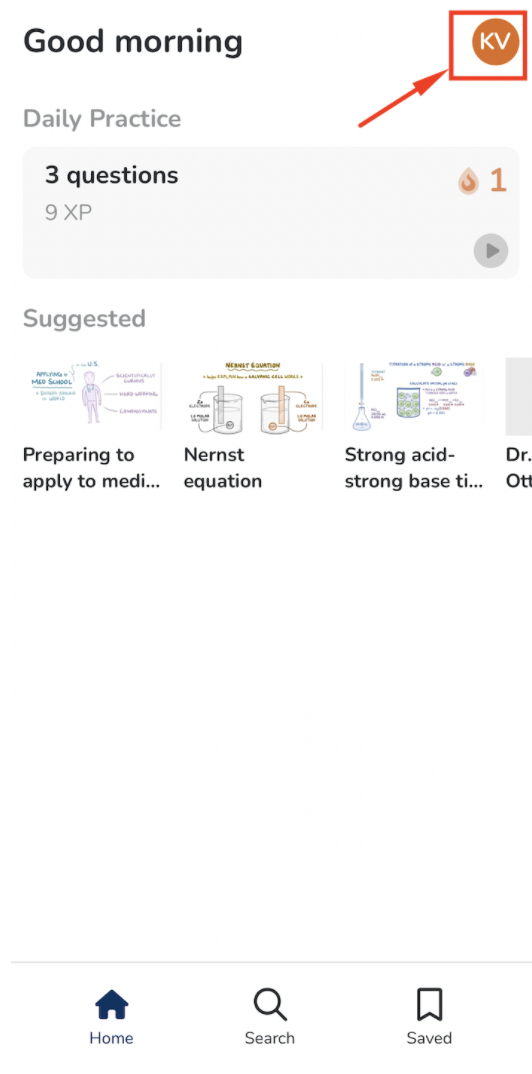
Accessing Your Account Information and App Settings
To access your account profile and settings:
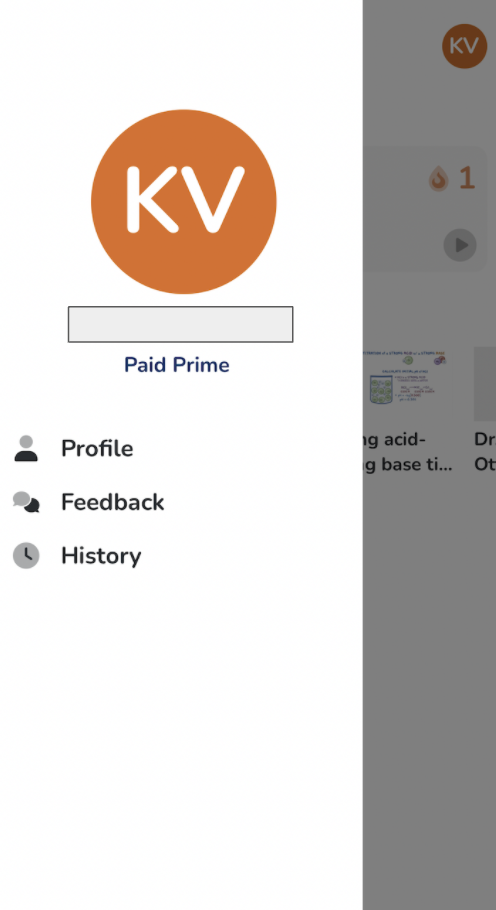
Click the profile button in the upper right corner of the screen. This menu allows you to view:
Your Profile Information
Submit Feedback
View History (e.g., videos watched, flashcards answered, etc.)
App Settings
If you encounter any problems or need further assistance, please use the chat bubble located on the Osmosis website, or contact us at [email protected]. Happy learning!
Did we answer your question?
Recently viewed answers
Functionality disabled due to your cookie preferences