
Canvas – Osmosis LMS Access Set-up Instructions
Last updated on July 27, 2026
Osmosis LTI 1.3 Tool Set Up
- Navigate to your Admin Tab.
- Click Developer Keys
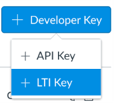
- Click + Developer Key on the right-hand side.
Click + LTI Key
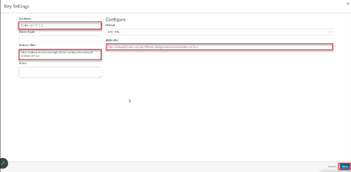
- From the method dropdown menu choose Enter URL
- Enter the URL in the JSON URL field.
- Enter Key Name: Osmosis LTI 1.3
- Enter Redirect URL below.
Click Save at the bottom right corner.
- Change State from OFF to ON for the newly created key.
- Copy the Client ID number under the detail section of the newly created key
- This will be the numbers that are in the red box based on the screenshot below.
This will need to be sent to the Elsevier Representative

- In your Admin panel, click Settings
- Click App
- Click View App Configurations
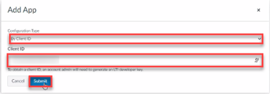
- Click + App
- From the Configuration Type dropdown menu choose By Client ID.
- Paste the number you got from step 11 under Client ID.
Click Submit
- Finish installing the tool.
- Locate Osmosis LTI 1.3 and click the gear icon.
Click Deployment ID

- Copy the Deployment ID and send it to the Elsevier Representative along with the Client ID.
Did we answer your question?
Recently viewed answers
Functionality disabled due to your cookie preferences