
Brightspace – Osmosis LMS Access Set-up Instructions
Last updated on July 27, 2026
Step 1- Create new LTI Advantage setup
As an admin, you can configure an external tool from the Site administration page.
- Navigate to Settings > Manage extensibility
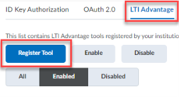
- Click the LTI Advantage Tab
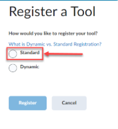
Click “register tool”. Choose the “Standard” option
- Manually enter the required parameters and permissions
- Name: Osmosis LTI 1.3
- Domain: https://authgateway.elsevier.com
- Redirect URLs: https://authgateway.elsevier.com/v3/launch
- OpenID Connect Login URL: https://authgateway.elsevier.com/v3/login
- Target Link URL: leave blank. This will be overwritten when creating the external link in a future step.
- Keyset URL: https://authgateway.elsevier.com/v3/launch/keys
- Extensions: Select “Assignments and Grade Services” and “Names and Role Provisioning Services”
- Select “Send Institution Role”
- Click Register
Note down and copy the Brightspace Registration Details. These values must be provided to Elsevier.
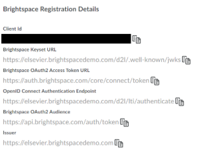
- Click Save and Close.
Step 2 - Create new LTI Advantage deployment
- Navigate to Settings > External Learning Tools
- Click LTI Advantage Tab
- Click “New deployment”
- Choose the tool you created in Step 1 for the dropdown for “Tool”
- Name should match 4a in Step 1
- Name: Osmosis LTI 1.3
- Security settings: check all the boxes except
- Configurations Settings: Check Open as External Resource
- Make tool available to
- Current Org Unit: Use the Add Org Units button to make the tool provider available to the desired organizational units on your system.
- Click “Create deployment” at the bottom
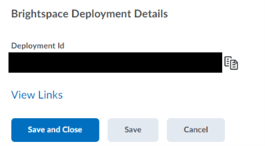
- Note down and copy the deployment ID. These values must be provided to Elsevier.
Click Save and Close
Step 3 – Share relevant tool configuration values with Elsevier
- Send all the values from Step 1 and the “Deployment ID” from Step 2 to Elsevier.
Step 4 – Create a new External tool link for your deployment, in your courses
- Click on the Osmosis LTI 1.3 deployment created in step 2.
- Scroll to the bottom of the page and click View Links
- Click New Link
- Make sure the Link is enabled.
- Name: Osmosis LTI 1.3
- Click Save and Close
Did we answer your question?
Recently viewed answers
Functionality disabled due to your cookie preferences