
Blackboard – Osmosis LMS Access Set-up Instructions
Last updated on July 27, 2026
Adding LTI 1.3 Evolve Link Tool in Blackboard
- Log in as an administrator into your Blackboard Learn system.
- Click on the System Admin
- Under Integrations, Select LTI Tool Providers.
- Click Register LTI 1.3/Advantage Tool.
- Enter the following Client ID: 49e00053-6ec2-4879-b75e-3d08edad2f9a
- Click the Submit button.
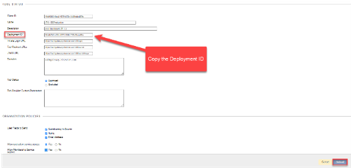
- Copy down the Deployment ID (This will need to be sent to Elsevier)
- Tool Status: Approved.
- Check all boxes under User field to send (Constituency in course, Name, E-mail)
- Allow Evaluations Service Access: Yes
- Allow Membership Service Access: Yes
Click Submit at the bottom of the page.
- Return to LTI Tool Providers.
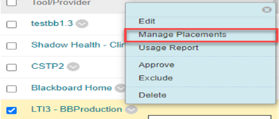
- Click the dropdown arrow next to the Tool Name LTI13 – BBProduction
Click Manage Placement
Click Create Placement.

- Label: Osmosis LTI 1.3
- Handle: Osmosis LTI 1.3
- Availability: Yes
- Click Course Content Tool
- Check the box Allow Evaluation
- Check the box Launch in a new Window.
- Target Link URL: https://authgateway.elsevier.com/tools/lti3/osmosis
- Click the submit button at the bottom of the page.
Did we answer your question?
Recently viewed answers
Functionality disabled due to your cookie preferences