
View by category
How do I search by keywords?
Last updated on August 17, 2026
How
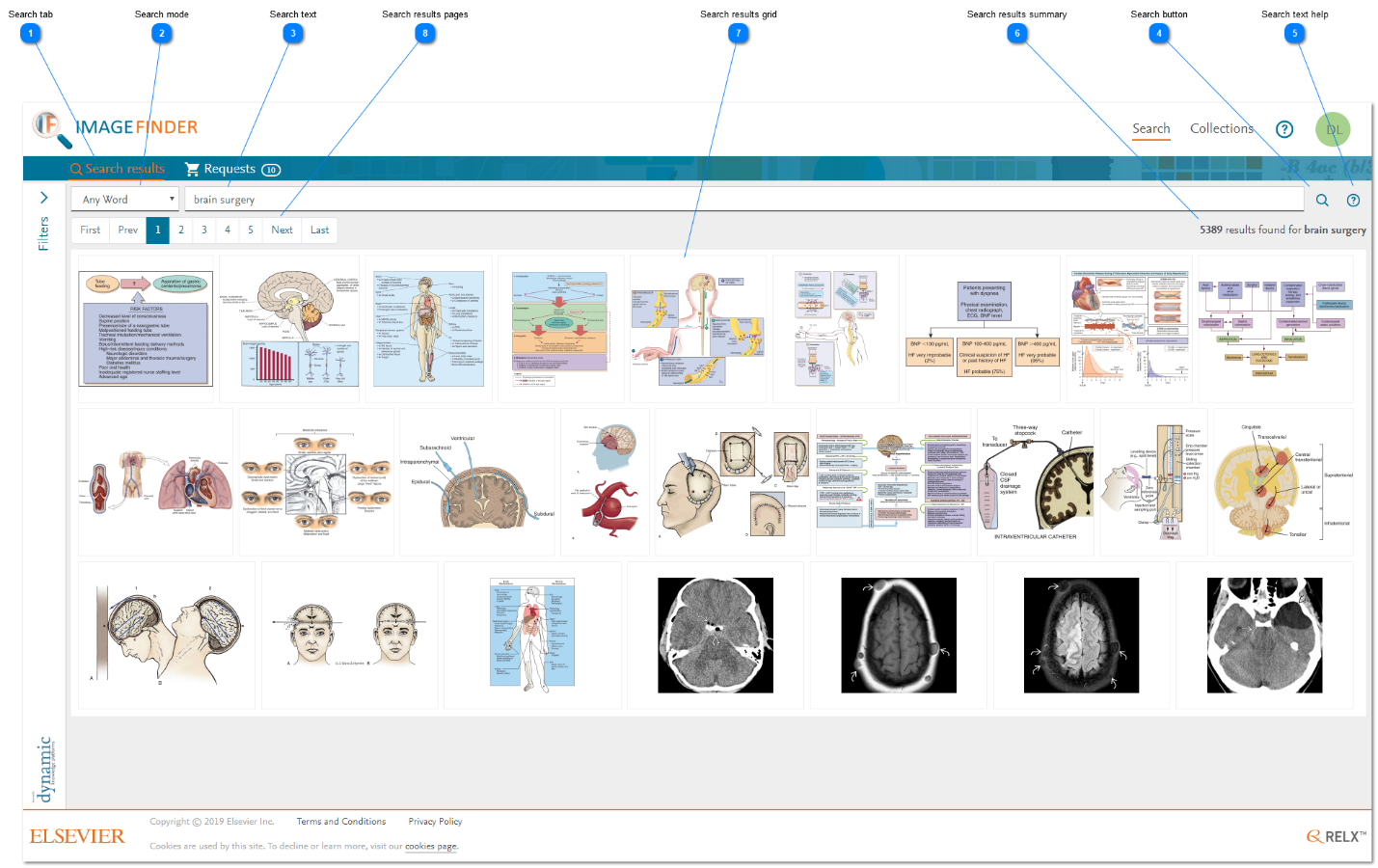
- Search tab: The search tab is permanently displayed when you are accessing the Search featuresopens in new tab/window. Click 'Search results' to display your search results or initiating a new search whenever you have switched to another context (e.g. request cartopens in new tab/window or collection administrationopens in new tab/window.
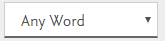
- Search mode: The search mode defines how the words and phrases in the search text criteria field are used in a search.
- Text (words and/or phrases) entered in the search text field is matched against the caption of an image.
- Matching ignores case sensitivity and extra white space characters in the caption.
- Each word/phrase is matched against text anywhere in the caption.
- To search for a phrase, enclose it in double inverted commas (double quotation marks).
- If the matching option selected is ‘Any word’, then the search returns images where the caption contains ANY of the words/phrases in the search text field, regardless of order. So, the more words/phrases you enter, the more images you will find.
- If the matching option selected is ‘All words’, then the search returns images where the caption contains ALL of the words/phrases in the search text field, regardless of order. So, the more words/phrases you enter, the fewer images you will find.
- ANY – "Heart surgery" cardiac coronary = "Heart surgery" OR "cardiac" OR "coronary"
- ALL – "Heart surgery" cardiac coronary = "Heart surgery" AND "cardiac" AND "coronary"
The blue text can appear in any order in the caption.
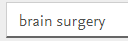
- Search text: The search text box is displayed above the search results. You can enter any text into this box. The text you enter is matched against the title and caption text of an image. The matching process ignores case sensitivity and extra white space characters.
Each word in the search text box is matched independently against the image title/caption. If you want to search for an exact phrase, you need to enclose the phrase in double inverted commas/double quotation marks (e.g. "brain surgery").
The way in which multiple words/phrases are used to match captions is determined by the search mode (see step 2 above). - Search button: To initiate the search, click on the magnifying glass icon at the end of the search text box. Any matching images are displayed in the search results grid.
- Search text help: Click on the ? icon to get some hints on how to enter the search text criteria.
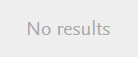
- Search results summary: A count of the total number of matching images found is shown in the search results summary area. If there are no matching images found, the search results grid is empty and the summary text displays.
- Search results grid: The search results grid shows 25 matching image thumbnails per page. See Why are some images not shown in the search results?opens in new tab/window
- Search results pages: You can move through the search results pages by using the chevron buttons or by clicking on a specific page number. The page buttons are not displayed if there are 25 or fewer matching images (i.e. 1 page).

Move to first page. Disabled on first page.

Move to previous page. Disabled on first page.

Move to a specific page.

Move to next page. Disabled on last page.

Move to last page. Disabled on last page.





Did we answer your question?
Related answers
Recently viewed answers
Functionality disabled due to your cookie preferences